How to Connect to a Self-hosted Server over SSH
Overview
SSH (Secure Shell) is a secure network protocol used for remote administration of a server’s operating system.
Connecting to a server over SSH lets you work with it from a terminal or an SSH client. You can change system settings, install software, manage files, and identify issues. The connection is encrypted, which helps protect your data from being intercepted in transit.
To connect over SSH, you need the server’s IP address, username, and password. Your hosting provider usually sends these details to the email address you used when you ordered the server.
How to Connect over SSH on Windows
-
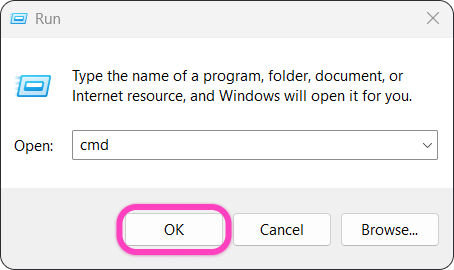
Press ⊞ Win + R at the same time to open the
Rundialog. -
In this dialog, type
cmdand click OK — this opens Command Prompt.
- In Command Prompt, run
ssh username@IP. Replaceusernamewith your username (most often "root") and replaceIPwith the server address you're connecting to. Press Enter after typing the command.
If SSH uses a non-default port (the default is 22), your hosting provider will list it together with the other connection details. In this case, the command will look like this: ssh username@IP -p port, for example ssh [email protected] -p 2221.
-
The first time you connect over SSH from the device, you'll need to confirm the host key fingerprint. Type
yesand press Enter. -
Enter the user’s password and press Enter.
To paste the password into the command line, press Ctrl + V or click the right mouse button. While you type or paste the password, no characters will appear on the command line — that's normal. The SSH client hides the password as you enter it for security reasons.
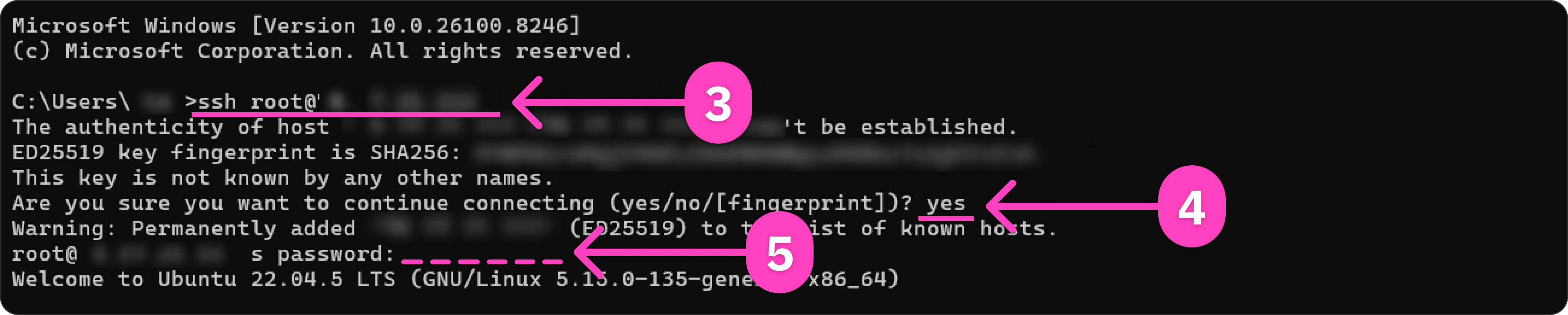
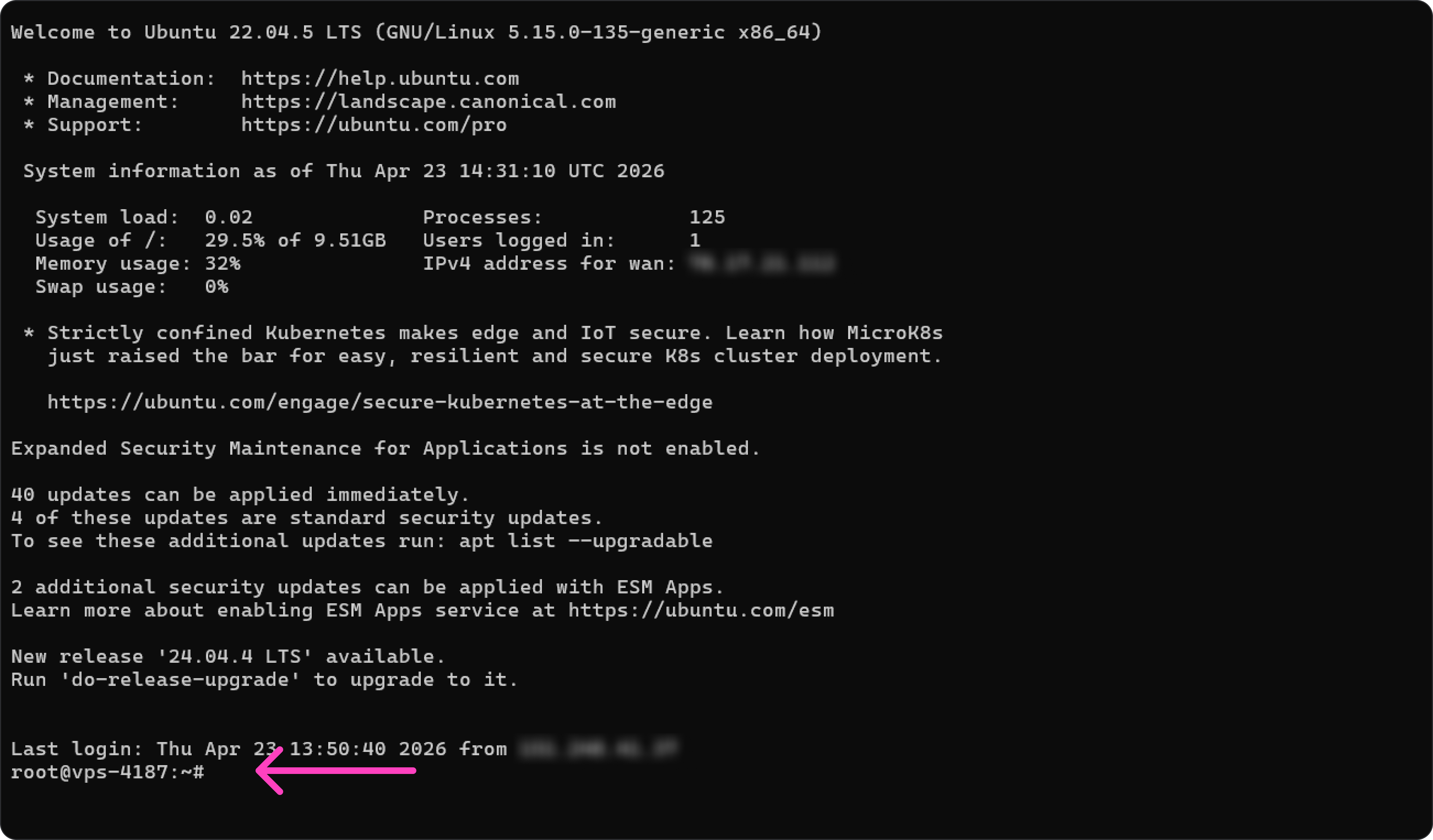
After a successful connection, an SSH session opens. In the example below, you can see a short summary about the server: the operating system, disk and memory usage, pending updates, and so on. At the bottom you'll see a command line — from there you can control the server by entering commands.
Server Diagnostics Command on Windows
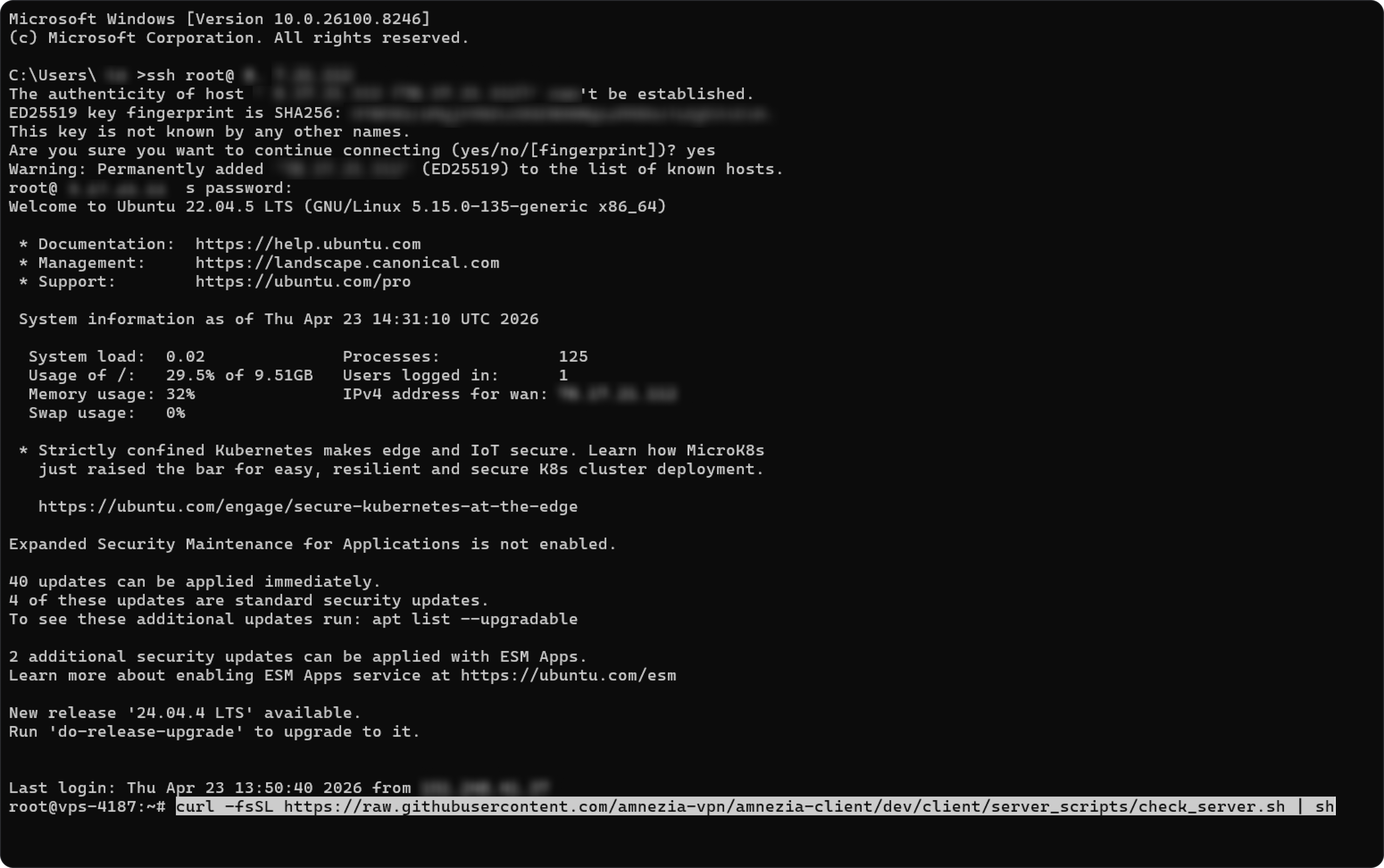
The command below runs a full system check and displays a detailed report. You can use it to check the overall state of the server and spot common issues — for example, low disk space.
Amnezia technical support may ask for this report when helping you fix server connection problems.
- Move the cursor over the command field below — you'll see two buttons on the right. Click the button on the right to copy the full command from the field.
curl -fsSL https://raw.githubusercontent.com/amnezia-vpn/amnezia-client/dev/client/server_scripts/check_server.sh | sh
If the command above doesn't work, enter the following equivalent instead:
wget -qO- https://raw.githubusercontent.com/amnezia-vpn/amnezia-client/dev/client/server_scripts/check_server.sh | sh
- After you connect to the server over SSH, paste the command into the command line and press Enter.
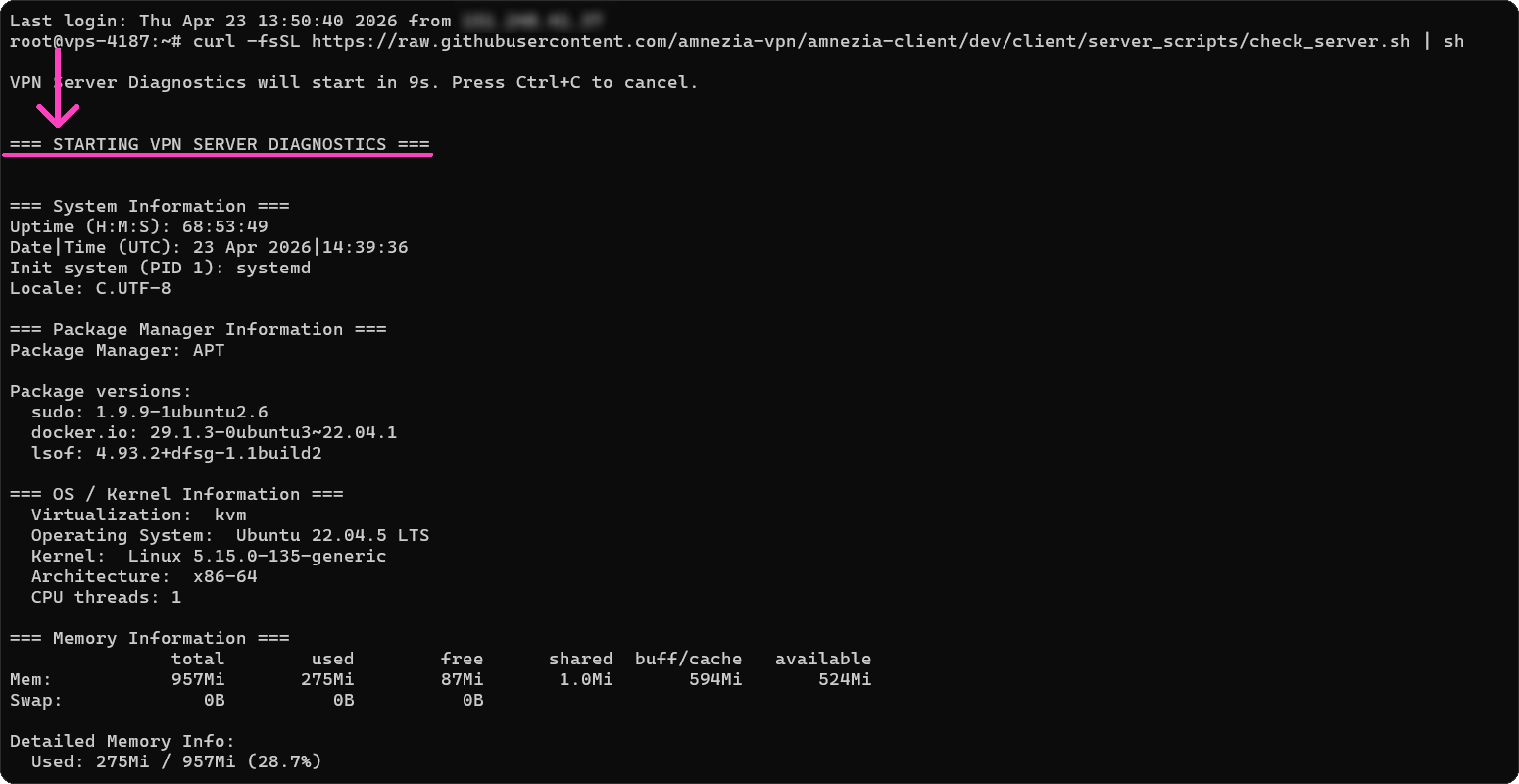
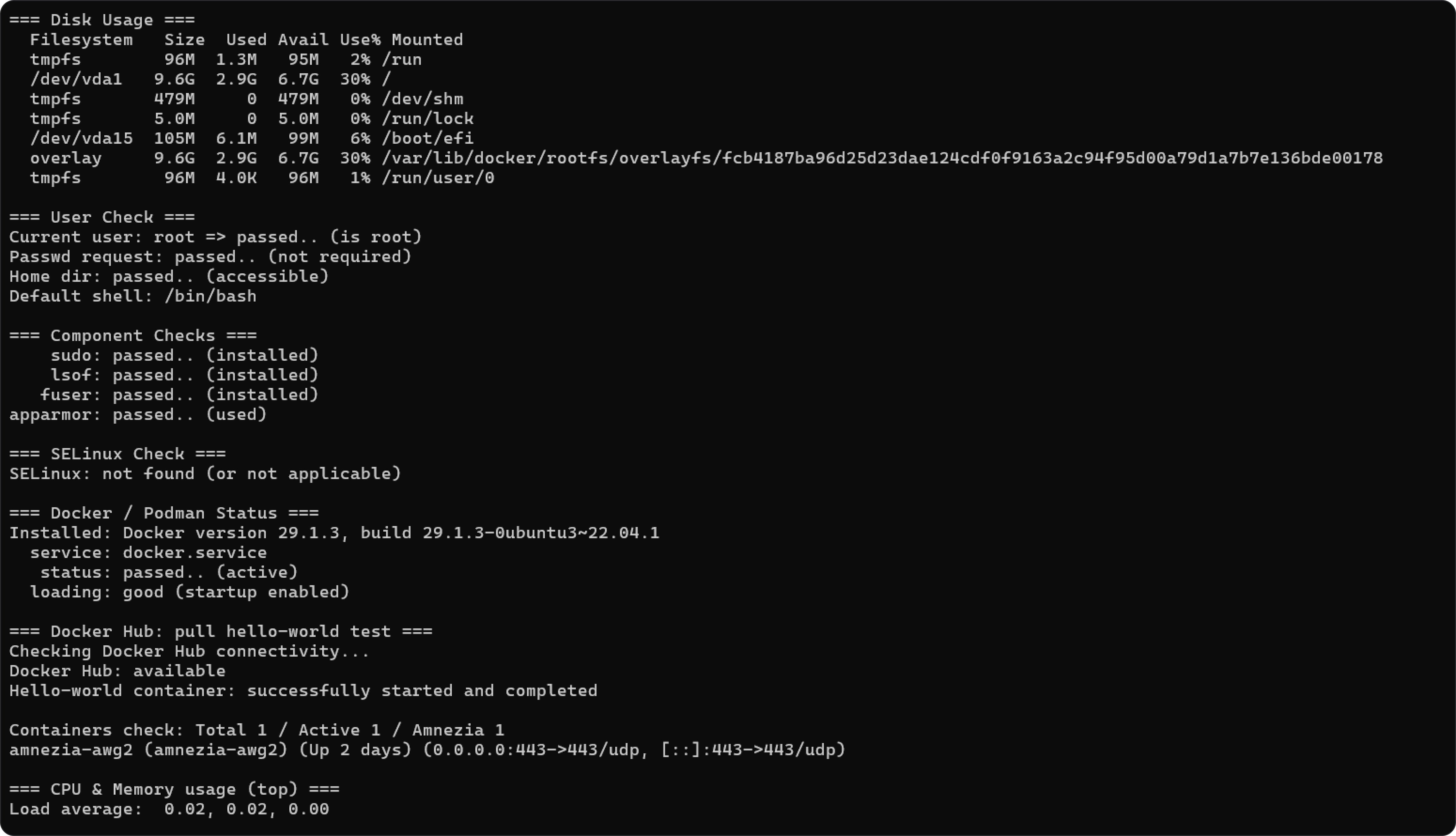
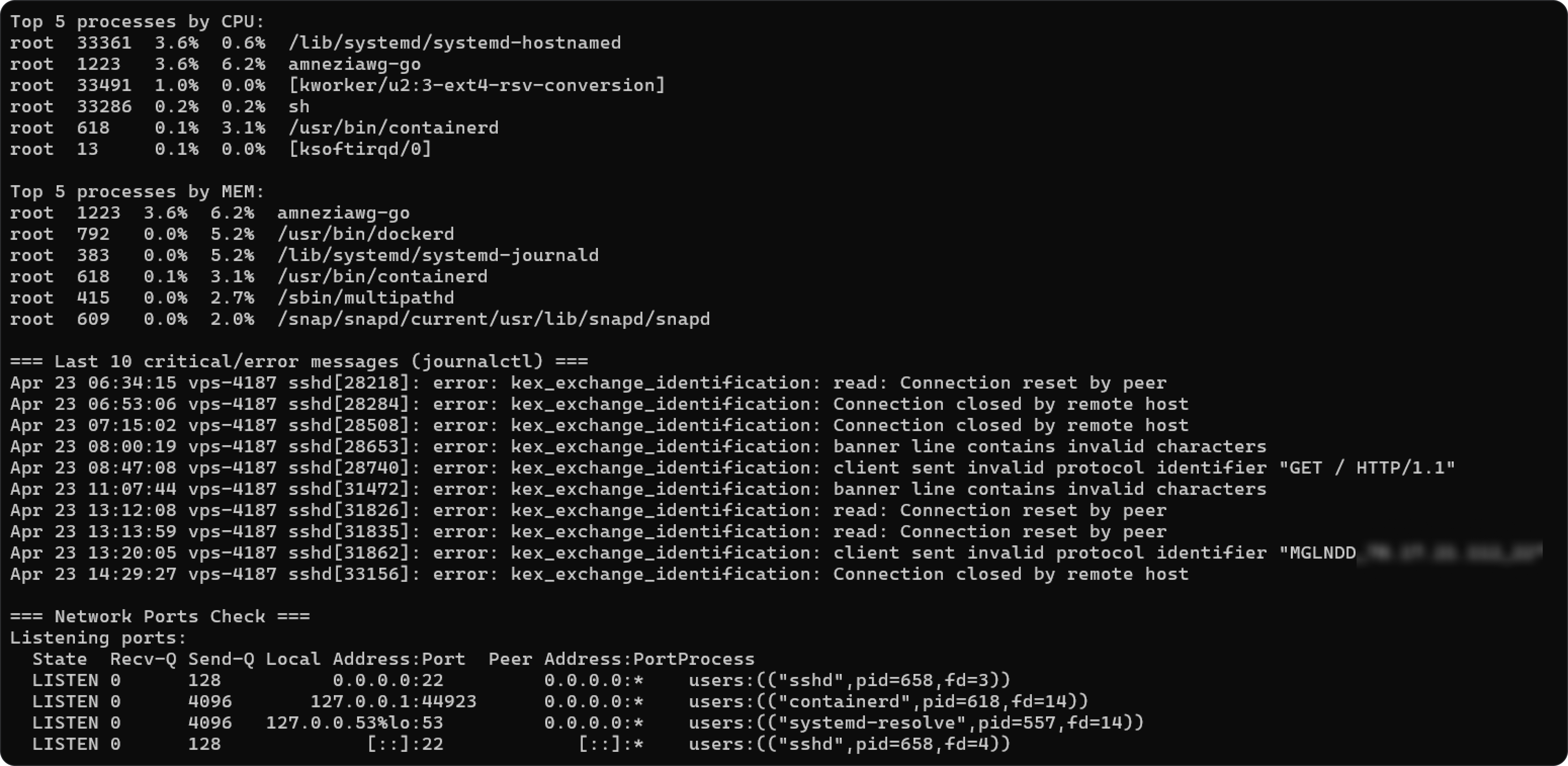
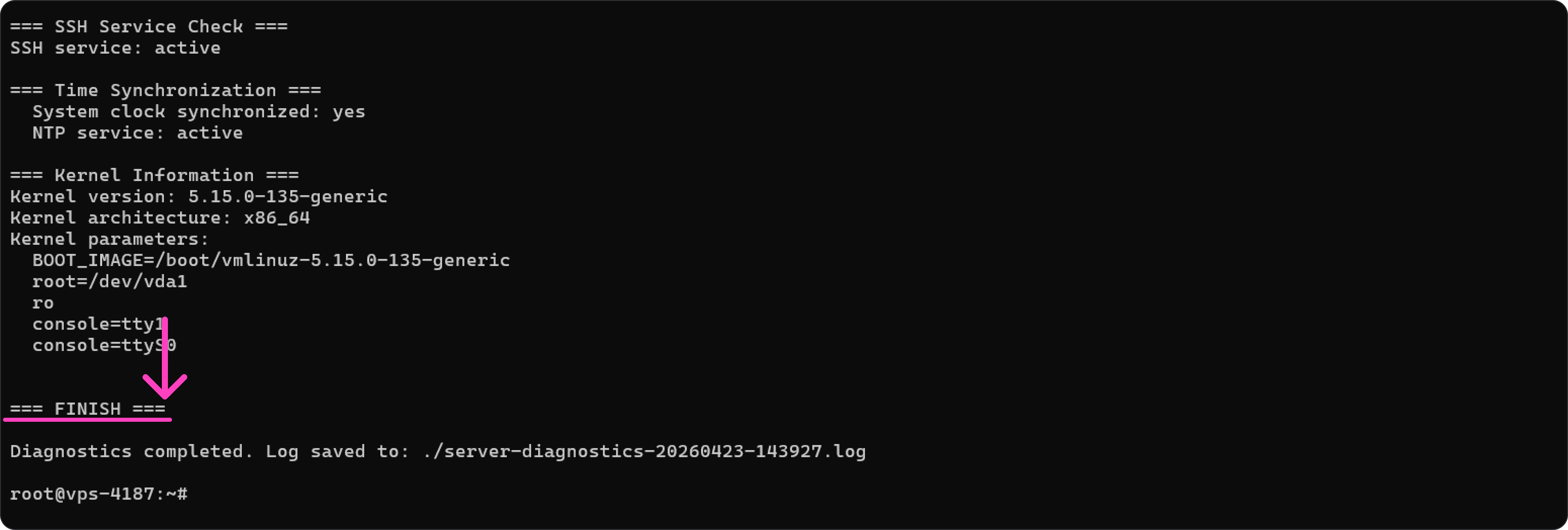
- When the diagnostic finishes, its output appears on the screen. To share it with technical support so they can check the server, copy everything from the line
=== STARTING VPN DIAGNOSTICS ===through the line=== FINISH ===. Those lines are highlighted in the screenshots below.
How to Connect over SSH on Linux
-
Press Ctrl + Alt + T at the same time to open the terminal.
-
In the terminal, run
ssh username@IP. Replaceusernamewith your username (most often "root") and replaceIPwith the server address you're connecting to. Press Enter after typing the command.
If SSH uses a non-default port (the default is 22), your hosting provider will list it together with the other connection details. In this case, the command will look like this: ssh username@IP -p port, for example ssh [email protected] -p 2221.
-
The first time you connect over SSH from the device, you'll need to confirm the host key fingerprint. Type
yesand press Enter. -
Enter the user’s password and press Enter.
To paste the password into the terminal, press Ctrl + Shift + V. While you type or paste the password, no characters will appear in the input line — that's normal. The SSH client hides the password as you enter it for security reasons.

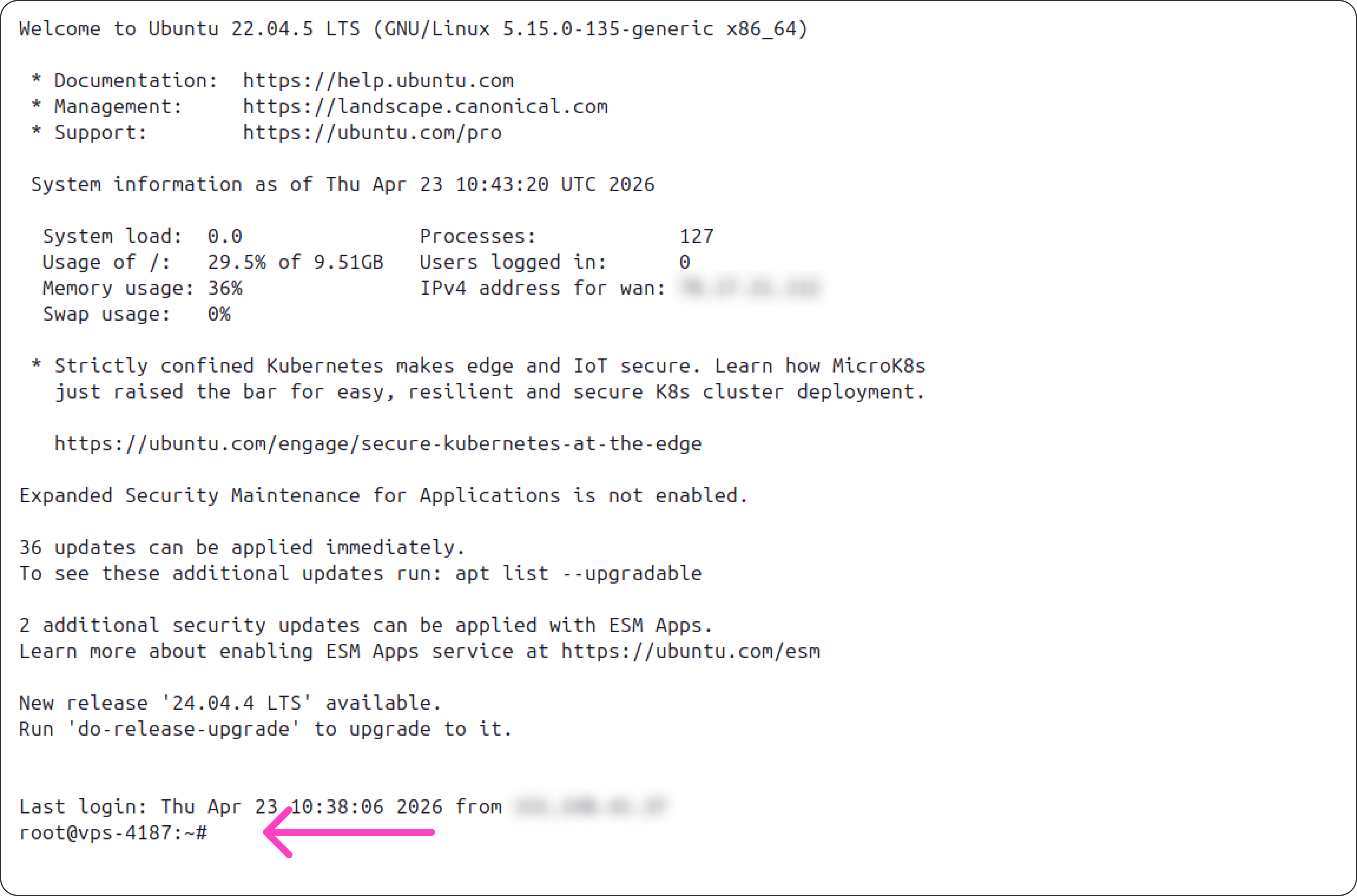
After a successful connection, an SSH session opens. In the example below, you can see a short summary about the server: the operating system, disk and memory usage, pending updates, and so on. At the bottom you'll see a command line — from there you can control the server by entering commands.
Server Diagnostics Command on Linux
The command below runs a full system check and displays a detailed report. You can use it to check the overall state of the server and spot common issues — for example, low disk space.
Amnezia technical support may ask for this report when helping you fix server connection problems.
- Move the cursor over the command field below — you'll see two buttons on the right. Click the button on the right to copy the full command from the field.
curl -fsSL https://raw.githubusercontent.com/amnezia-vpn/amnezia-client/dev/client/server_scripts/check_server.sh | sh
If the command above doesn't work, enter the following equivalent instead:
wget -qO- https://raw.githubusercontent.com/amnezia-vpn/amnezia-client/dev/client/server_scripts/check_server.sh | sh
- After you connect to the server over SSH, paste the command into the terminal and press Enter.
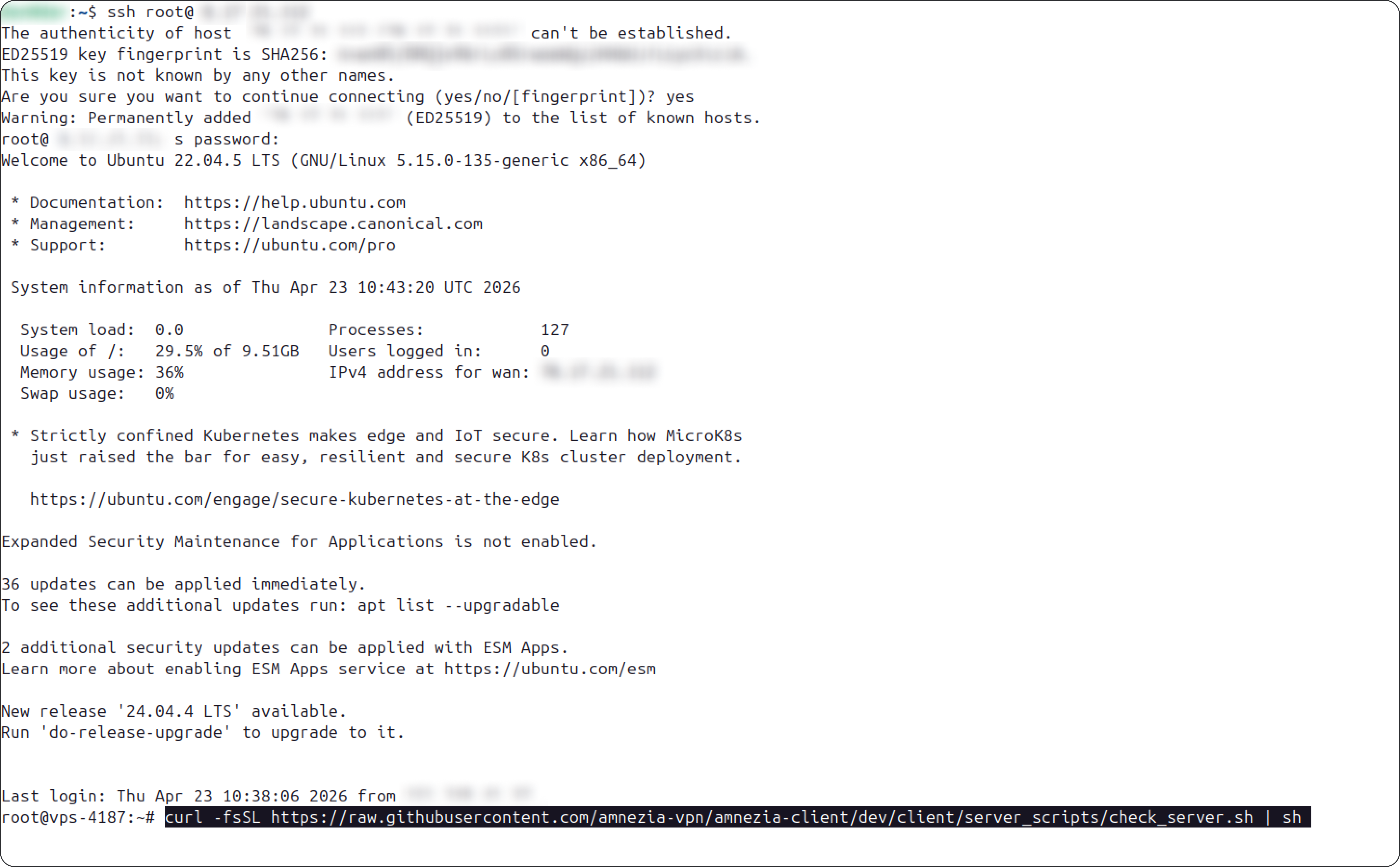
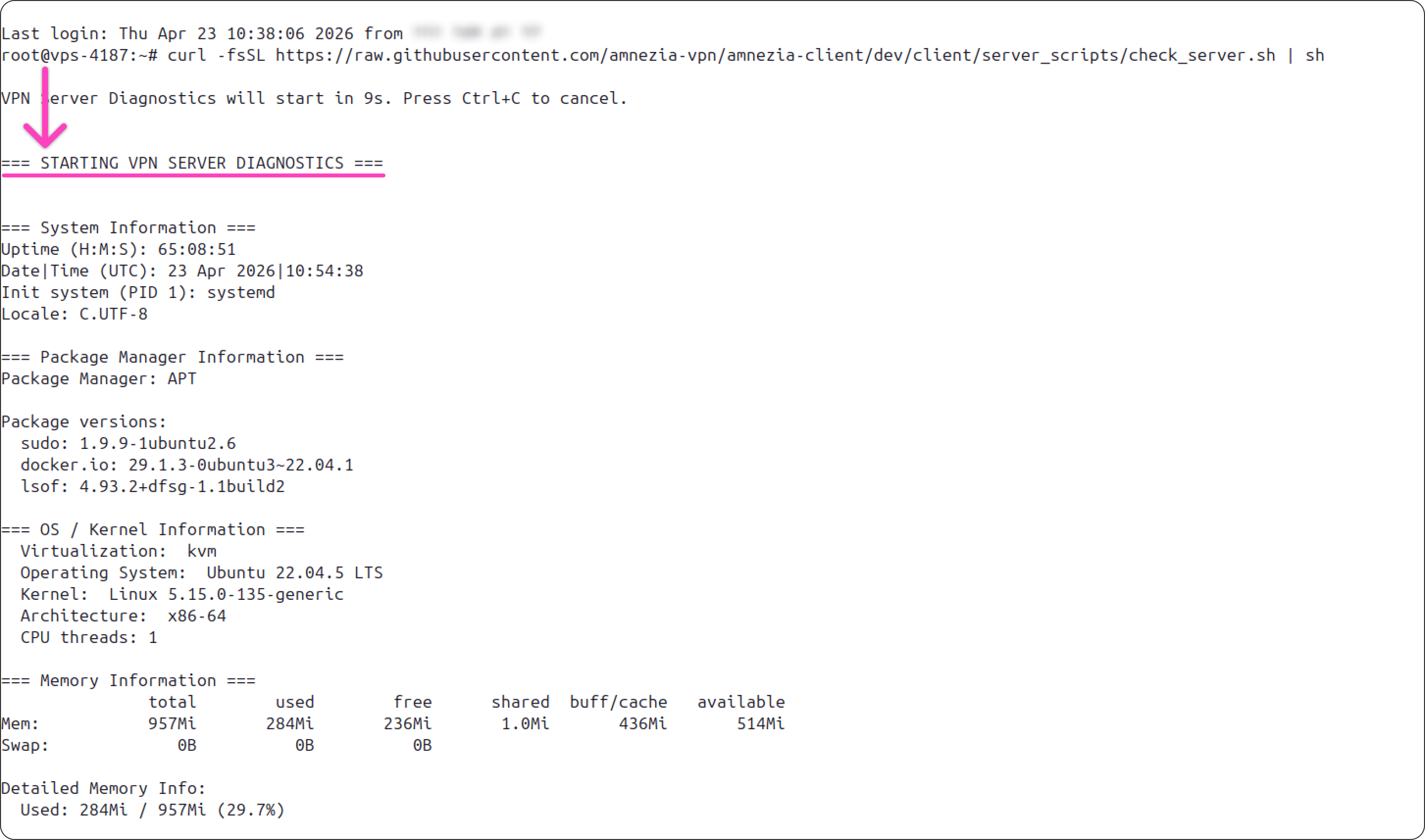
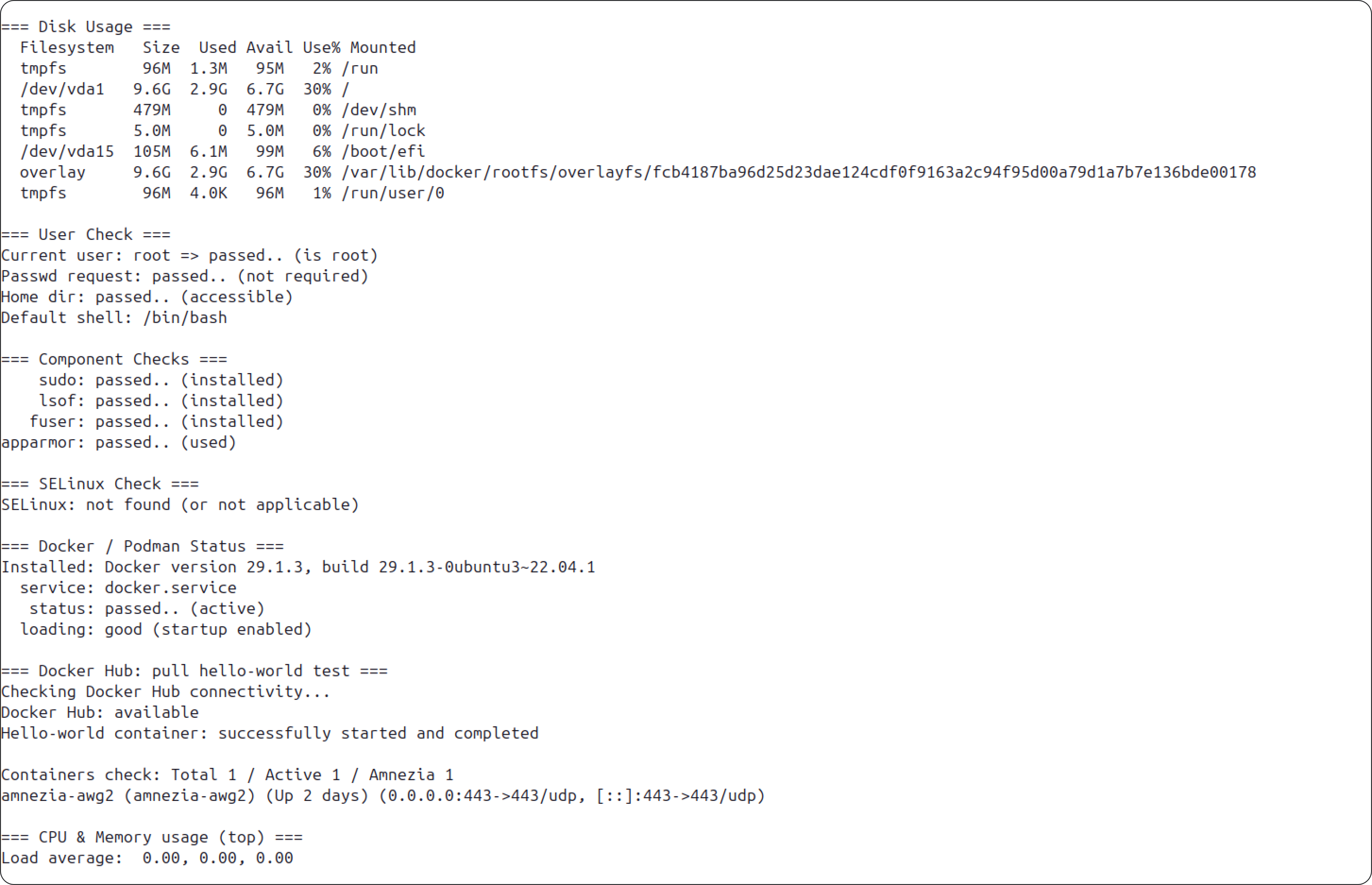
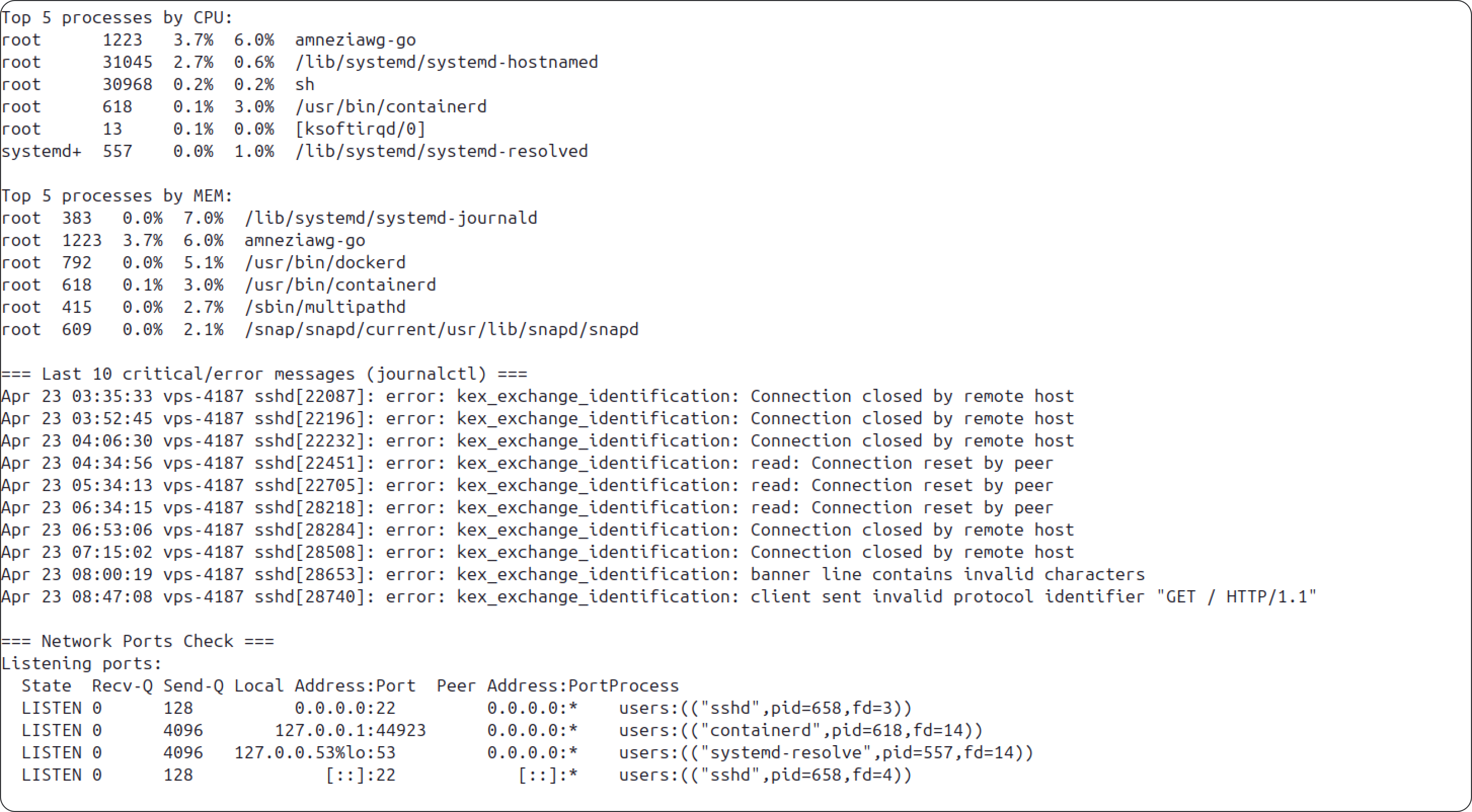
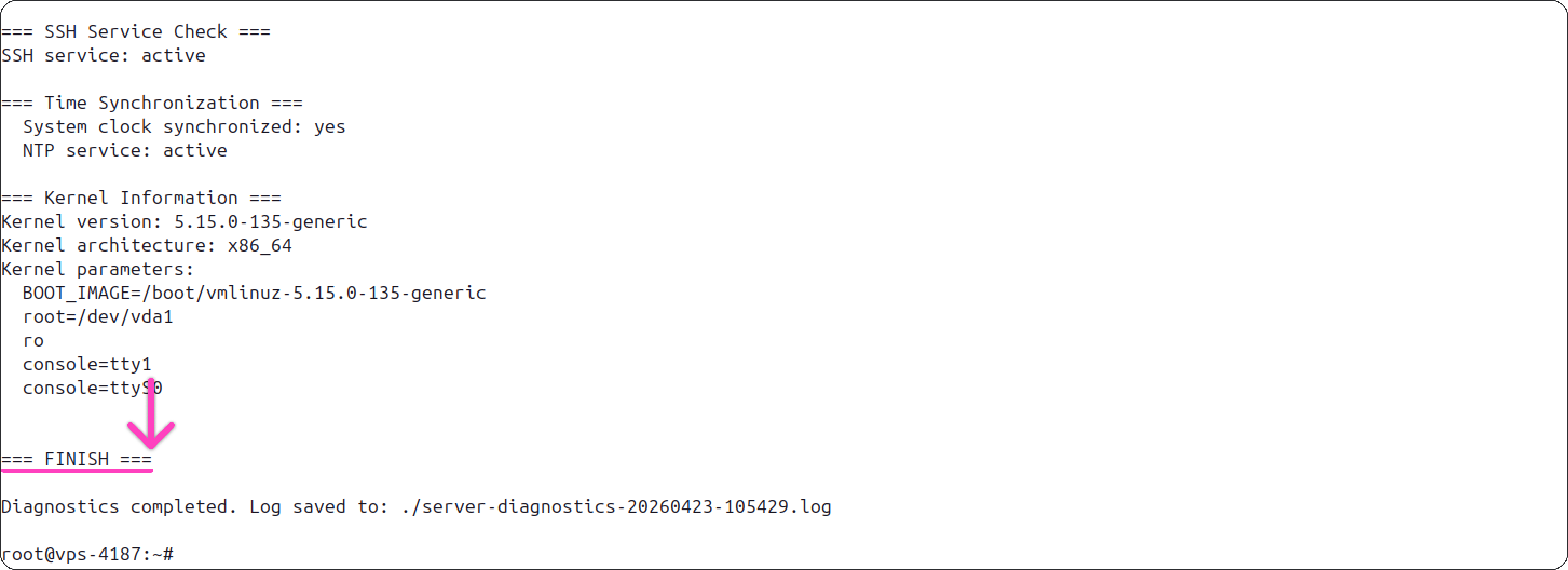
- When the diagnostic finishes, its output appears on the screen. To share it with technical support so they can check the server, copy everything from the line
=== STARTING VPN DIAGNOSTICS ===through the line=== FINISH ===. Those lines are highlighted in the screenshots below.
How to Connect over SSH on macOS
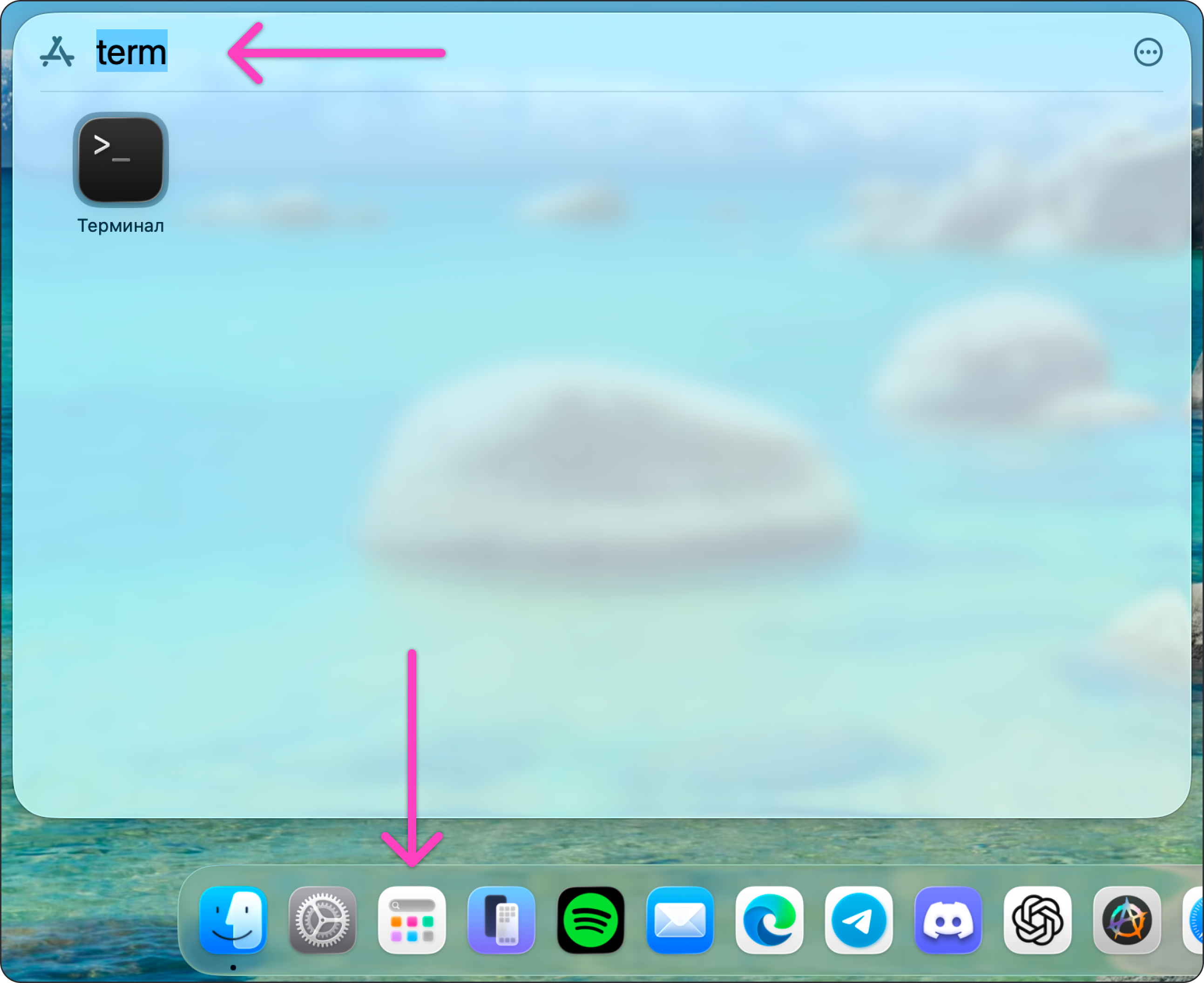
- Open Spotlight using the icon on the bottom bar shown in the screenshot. In the search field, type
Terminal, then open the app.
If you don't see the Spotlight icon on the bottom bar, press F4, or press ⌘ Command + Space at the same time. By default, these shortcuts open Spotlight.
- In the terminal, run
ssh username@IP. Replaceusernamewith your username (most often "root") and replaceIPwith the server address you're connecting to. Press Enter after typing the command.
If SSH uses a non-default port (the default is 22), your hosting provider will list it together with the other connection details. In this case, the command will look like this: ssh username@IP -p port, for example ssh [email protected] -p 2221.
-
The first time you connect over SSH from the device, you'll need to confirm the host key fingerprint. Type
yesand press Enter. -
Enter the user’s password and press Enter.
To paste the password into the terminal, press ⌘ Command + V. While you type or paste the password, no characters will appear in the input line — that's normal. The SSH client hides the password as you enter it for security reasons.
After a successful connection, an SSH session opens. In the example below, you can see a short summary about the server: the operating system, disk and memory usage, pending updates, and so on. At the bottom you'll see a command line — from there you can control the server by entering commands.
Server Diagnostics Command on macOS
The command below runs a full system check and displays a detailed report. You can use it to check the overall state of the server and spot common issues — for example, low disk space.
Amnezia technical support may ask for this report when helping you fix server connection problems.
- Move the cursor over the command field below — you'll see two buttons on the right. Click the button on the right to copy the full command from the field.
curl -fsSL https://raw.githubusercontent.com/amnezia-vpn/amnezia-client/dev/client/server_scripts/check_server.sh | sh
If the command above doesn't work, enter the following equivalent instead:
wget -qO- https://raw.githubusercontent.com/amnezia-vpn/amnezia-client/dev/client/server_scripts/check_server.sh | sh
- After you connect to the server over SSH, paste the command into the terminal and press Enter.
- When the diagnostic finishes, its output appears on the screen. To share it with technical support so they can check the server, copy everything from the line
=== STARTING VPN DIAGNOSTICS ===through the line=== FINISH ===. Those lines are highlighted in the screenshots below.
How to Connect over SSH on Android with Termius
- Install the Termius app from Google Play.
If you don't have Google Play, use any similar SSH client app — for example, Termux.
-
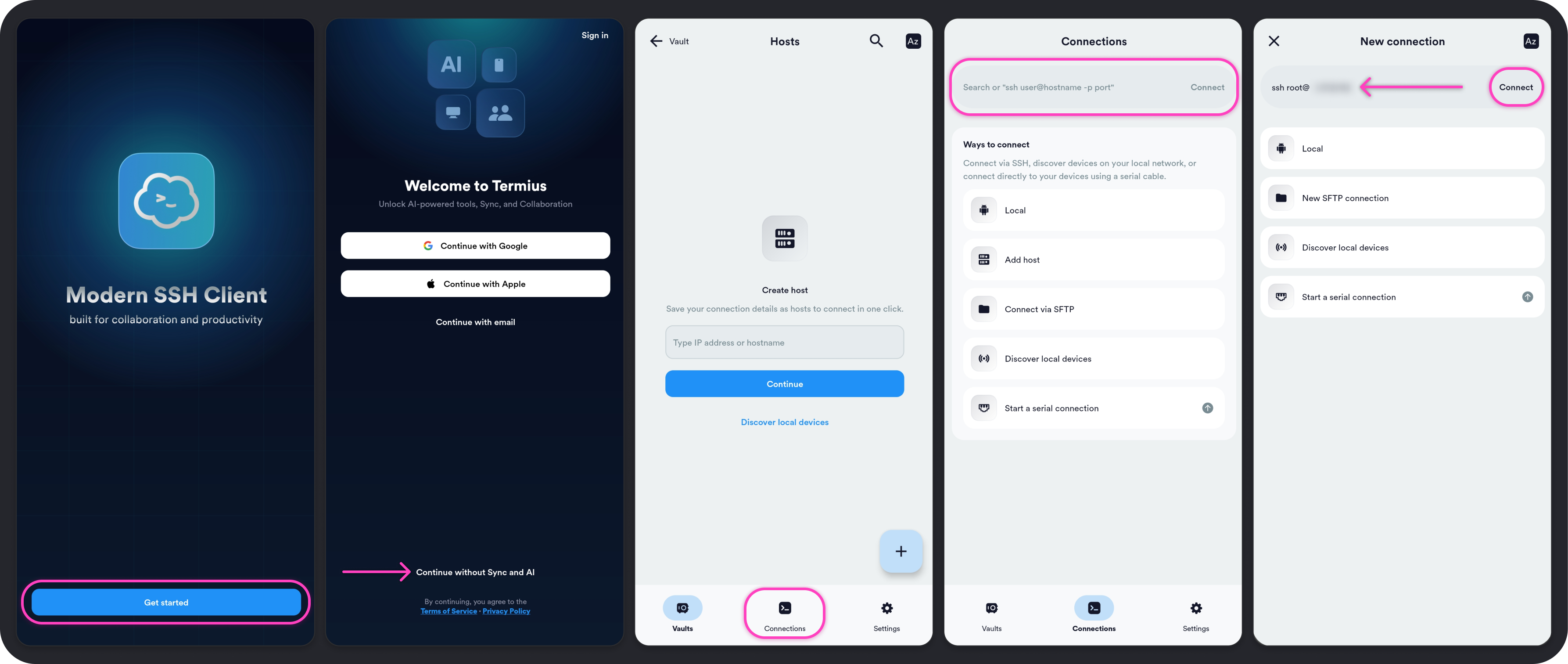
After you open the app, tap Get Started, then tap Continue without Sync and AI.
-
Once you're in the app, you'll be on the
Hoststab. Open the Connections tab on the bottom bar. In the input field at the top, enterssh username@IP. Replaceusernamewith your username (most often "root") and replaceIPwith the server address you're connecting to. When you're done, tap Connect.
If SSH uses a non-default port (the default is 22), your hosting provider will list it together with the other connection details. In this case, the command will look like this: ssh username@IP -p port, for example ssh [email protected] -p 2221.
-
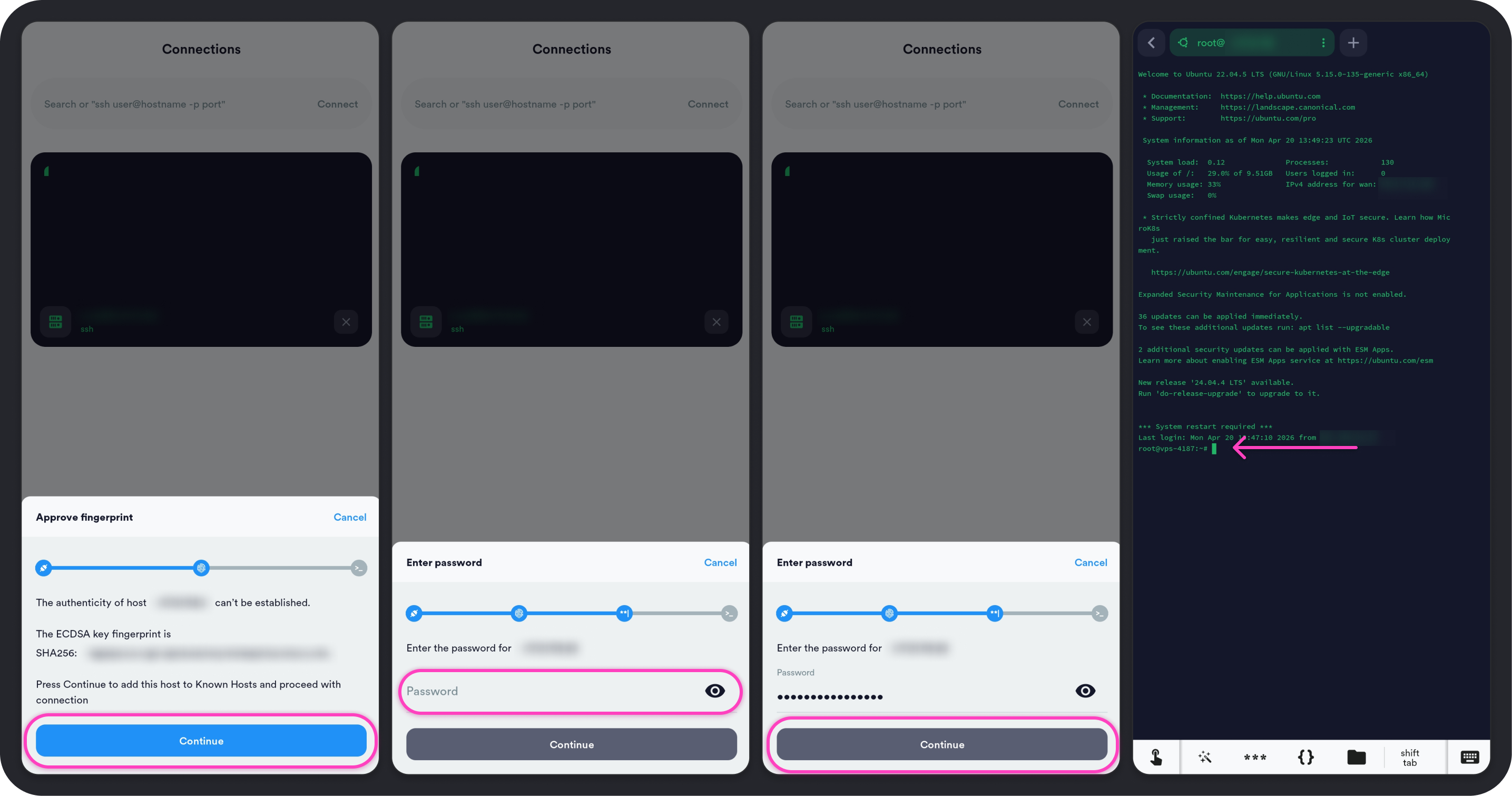
The first time you connect over SSH from the device, the
Approve fingerprintdialog opens. Tap Continue. -
In the
Enter passworddialog, enter the user’s password and tap Continue.
After a successful connection, an SSH session opens. In the example below, you can see a short summary about the server: the operating system, disk and memory usage, pending updates, and so on. At the bottom you'll see a command line — from there you can control the server by entering commands.
Server Diagnostics Command on Android
The command below runs a full system check and displays a detailed report. You can use it to check the overall state of the server and spot common issues — for example, low disk space.
Amnezia technical support may ask for this report when helping you fix server connection problems.
- When you view this page on a phone or tablet, tap the command field below once. Two buttons appear on the right side of the field — tap the right button to copy the full command.
curl -fsSL https://raw.githubusercontent.com/amnezia-vpn/amnezia-client/dev/client/server_scripts/check_server.sh | sh
If the command above doesn't work, enter the following equivalent instead:
wget -qO- https://raw.githubusercontent.com/amnezia-vpn/amnezia-client/dev/client/server_scripts/check_server.sh | sh
-
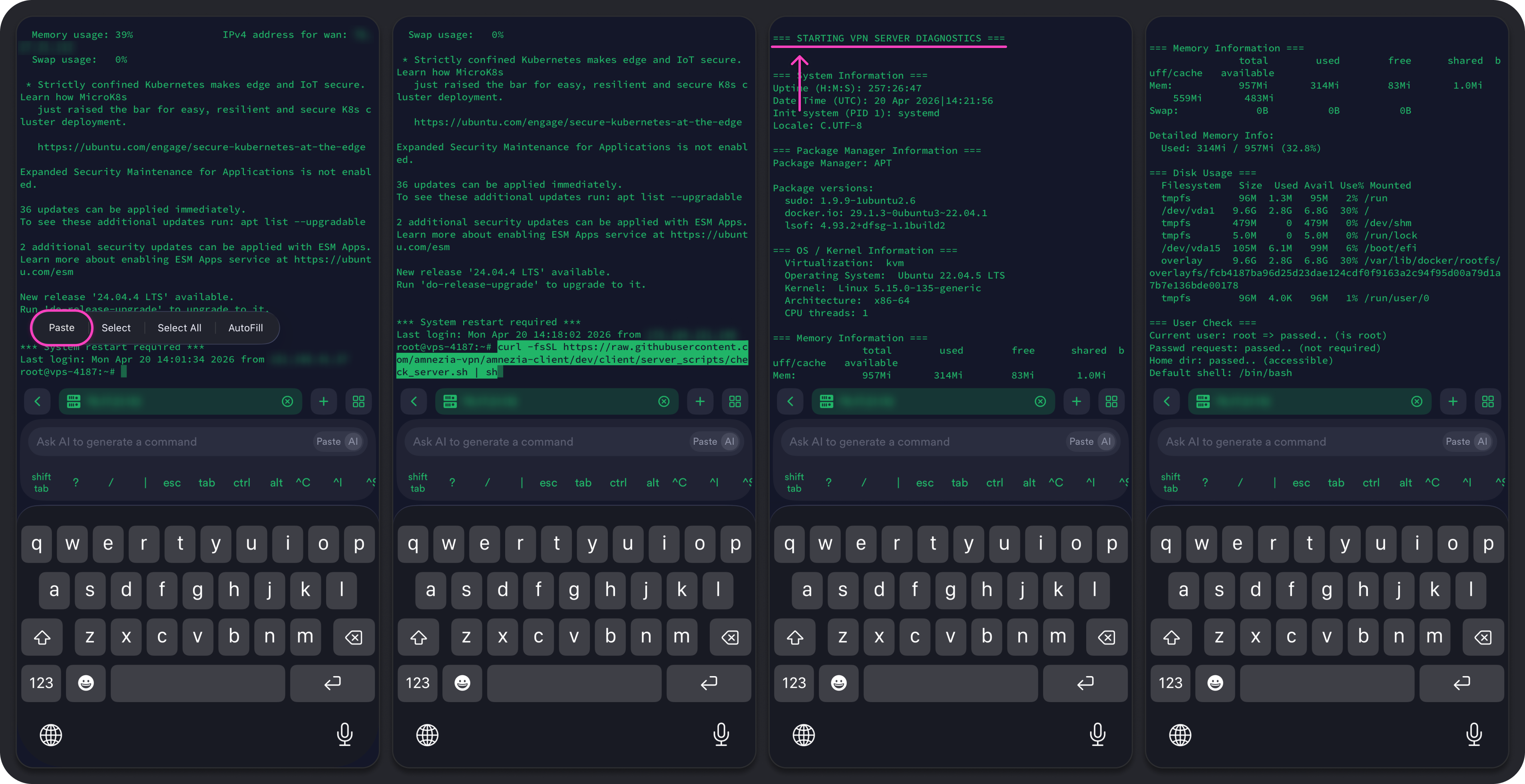
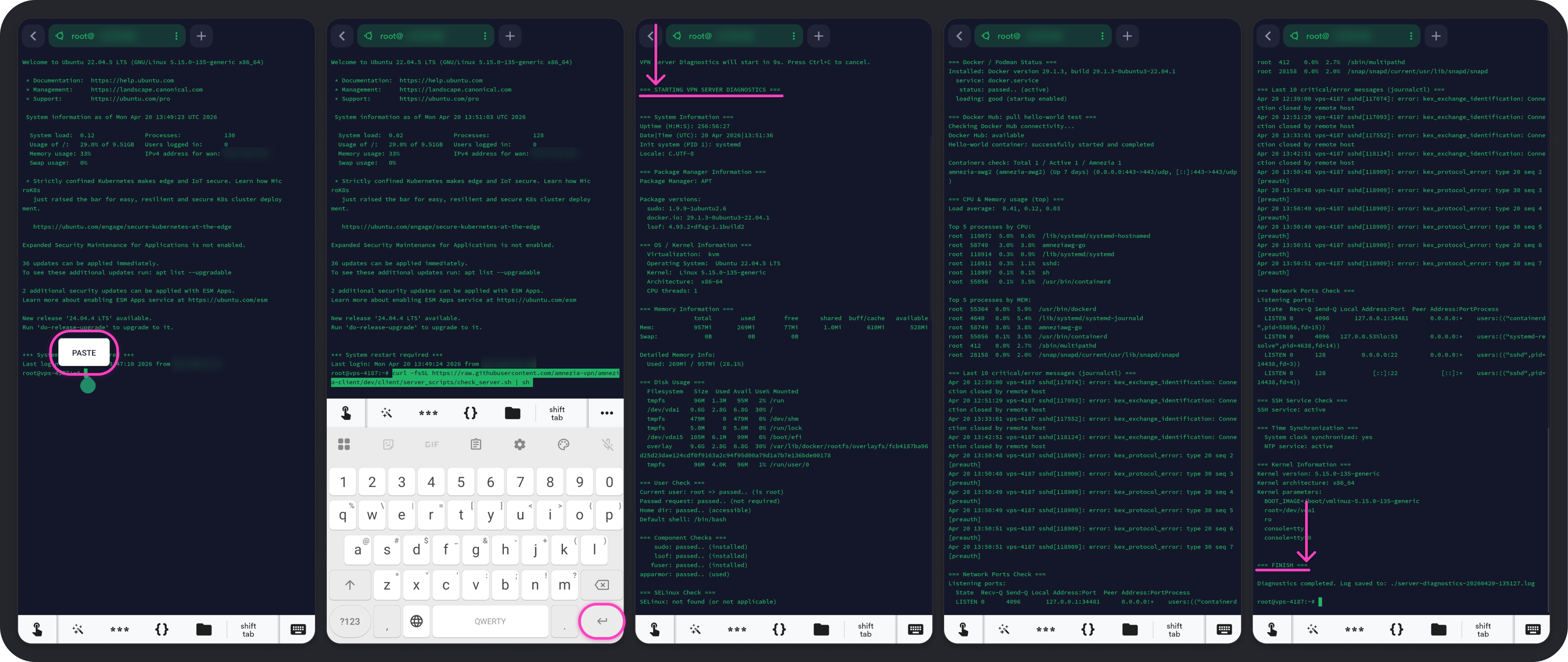
Paste the command into the SSH session and tap Enter on the keyboard.
-
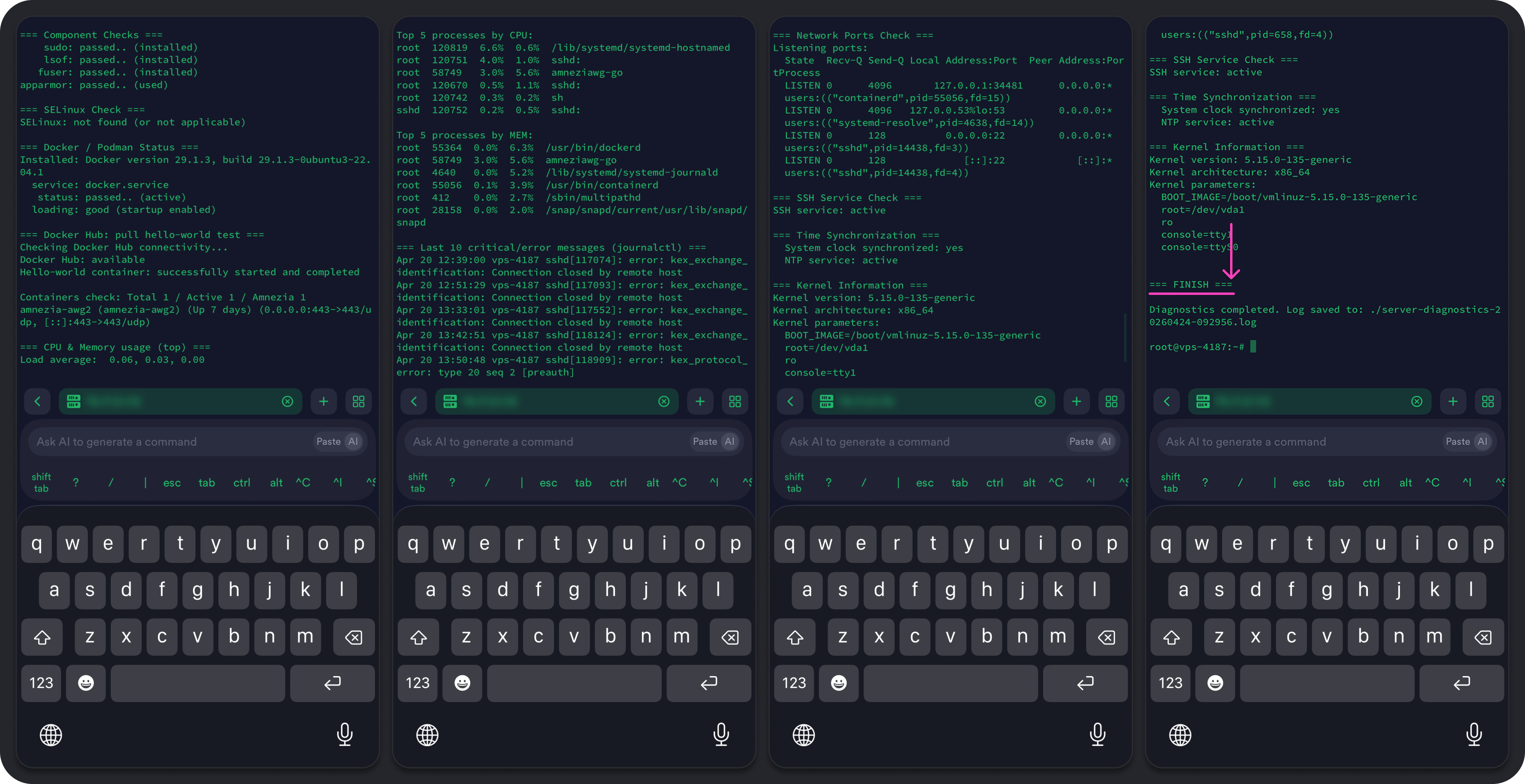
When the diagnostic finishes, its output appears on the screen. To share it with technical support so they can check the server, copy everything from the line
=== STARTING VPN DIAGNOSTICS ===through the line=== FINISH ===. Those lines are highlighted in the screenshots below.
If you change the zoom in the terminal, the text layout can break and become unreadable. If that happens, paste and run the command again.
How to Connect over SSH on iOS with Termius
-
Install the Termius app from App Store.
-
After you open the app, tap Get Started, then tap Continue with Basic SSH.
-
On the
Allow access to your local networkscreen, tap Continue. The app will then ask for access to your local network — we recommend that you don't allow it. Tap Don't Allow. -
Once you're in the app, you'll be on the
Hoststab. Open the Connections tab on the bottom bar.
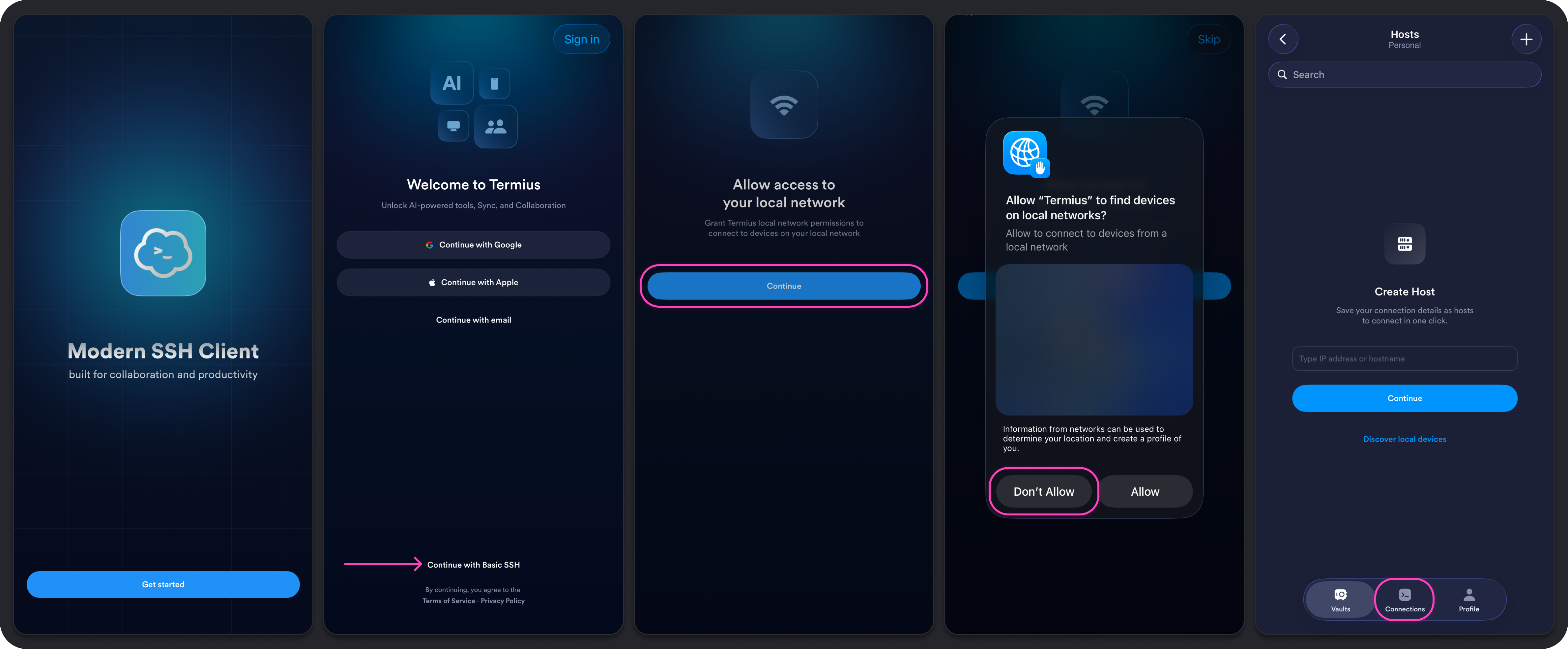
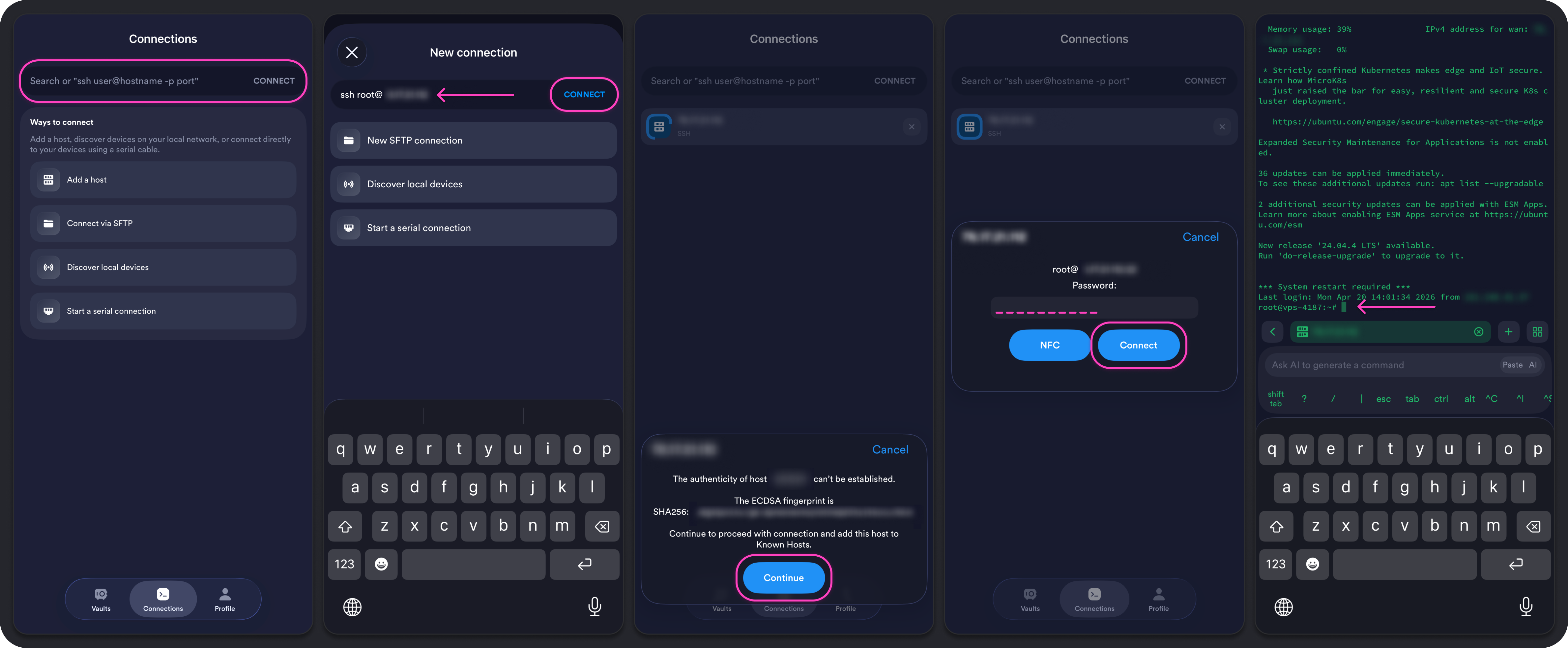
- In the input field at the top, enter
ssh username@IP. Replaceusernamewith your username (most often "root") and replaceIPwith the server address you're connecting to. When you're done, tap Connect.
If SSH uses a non-default port (the default is 22), your hosting provider will list it together with the other connection details. In this case, the command will look like this: ssh username@IP -p port, for example ssh [email protected] -p 2221.
-
The first time you connect over SSH from the device, you'll need to confirm the fingerprint. Tap Continue.
-
In the next dialog, enter the user’s password and tap Continue.
While you type or paste the password, no characters will appear in the input field — that's normal. The SSH client hides the password as you enter it for security reasons. We recommend copying the password from the source and pasting it into the input field.
After a successful connection, an SSH session opens. In the example below, you can see a short summary about the server: memory usage, pending updates, and so on. At the bottom you'll see a command line — from there you can control the server by entering commands.
Server Diagnostics Command on iOS
The command below runs a full system check and displays a detailed report. You can use it to check the overall state of the server and spot common issues — for example, low disk space.
Amnezia technical support may ask for this report when helping you fix server connection problems.
- When you view this page on a phone or tablet, tap the command field below once. Two buttons appear on the right side of the field — tap the right button to copy the full command.
curl -fsSL https://raw.githubusercontent.com/amnezia-vpn/amnezia-client/dev/client/server_scripts/check_server.sh | sh
If the command above doesn't work, enter the following equivalent instead:
wget -qO- https://raw.githubusercontent.com/amnezia-vpn/amnezia-client/dev/client/server_scripts/check_server.sh | sh
-
Paste the command into the SSH session and tap Enter on the keyboard.
-
When the diagnostic finishes, its output appears on the screen. To share it with technical support so they can check the server, copy everything from the line
=== STARTING VPN DIAGNOSTICS ===through the line=== FINISH ===. Those lines are highlighted in the screenshots below.
If you change the zoom in the terminal, the text layout can break and become unreadable. If that happens, paste and run the command again.