Local Proxy
Overview
Local Proxy is an operating mode in AmneziaVPN on Windows, macOS, and Linux for Amnezia Premium users. When enabled, the app works as a proxy at 127.0.0.1. Browser extensions and apps with proxy settings can use it to send their traffic through an Amnezia Premium server. For example, you can use Amnezia Premium Local Proxy with the Censor Tracker extension.
You cannot enable VPN and Local Proxy simultaneously:
- If you connect to VPN while Local Proxy mode is active, the proxy will disconnect
- If you enable Local Proxy mode while connected to VPN, the VPN will disconnect
Required conditions for Local Proxy availability:
- AmneziaVPN is used on a desktop or laptop running Windows, macOS, or Linux — the feature is unavailable on Android and iOS
- AmneziaVPN has an Amnezia Premium connection with an active subscription — the feature is unavailable for Amnezia Free and Self-hosted users
If the Local Proxy feature is unavailable, you need to:
How to Enable Local Proxy
You do not need to connect to the VPN before enabling Local Proxy or while using it. If the VPN is already connected, the app disconnects it when starting Local Proxy.
- Open AmneziaVPN and click the Amnezia Premium location name on the home screen.
- Select the location you want Local Proxy to use, then click ⚙️ (gear icon) in the top-right corner.
- Click Local Proxy, then use the toggle in the top-right corner to turn it on.
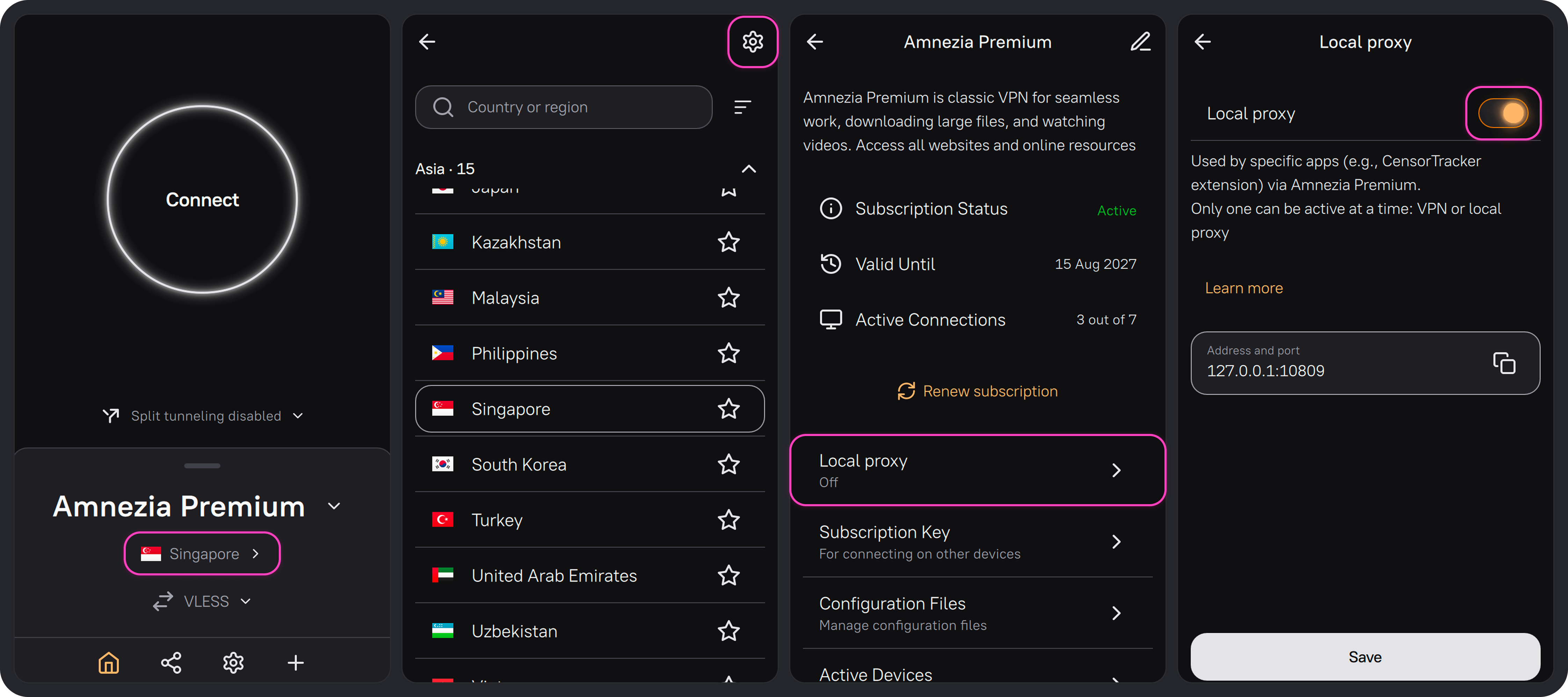
Local Proxy is now running through the selected Amnezia Premium location. If needed, copy or note the value in Address and port. You may need it to configure other apps whose traffic you want to send through the proxy.
The connection status on the AmneziaVPN home screen refers only to the VPN — it does not show whether Local Proxy is running.
If you turn Local Proxy off and on again without restarting AmneziaVPN, it automatically uses the next available port. To keep the port configured in other apps, restart AmneziaVPN before turning Local Proxy on again.
If you quit AmneziaVPN while Local Proxy is running, the proxy stops. It does not start automatically when you reopen AmneziaVPN — turn it on manually each time.
How to Connect Censor Tracker
Censor Tracker is a browser extension that routes traffic from selected websites through a proxy server. In Amnezia Premium local proxy mode, it uses the server selected in AmneziaVPN from your Premium subscription.
Install Censor Tracker from the official website (mirror). Versions are available for Chrome/Edge/Brave and Firefox. After installation, read the data transmission terms and click Agree.
In Firefox, also allow Censor Tracker to run in private windows. Without this permission, the proxy will not work in regular windows either.
Open about:addons → Extensions → Censor Tracker → Details. Under Run in Private Windows, select Allow.
Censor Tracker obtains the Local Proxy address and port from AmneziaVPN automatically, including after the port changes. You do not need to enter them manually.
- Click the Censor Tracker icon in the browser toolbar, then click ⚙️ to open the extension settings.
- Open Proxy Settings.
- Turn on Use proxy and select Amnezia Premium local proxy.
A message confirms when the connection is established.
If the connection does not work, try selecting another location in AmneziaVPN. You do not need to turn off Local Proxy to change the location.
To open websites from a built-in registry of blocked websites, select the country you need under Region. This changes the list of websites that will open through the proxy, not the location of your Amnezia Premium server.
To enable the proxy for a specific website, open the Censor Tracker menu on that website's tab, click ⋮ next to the domain name, select Always, and reload the page.
Local Proxy IP Address and Port
AmneziaVPN Local Proxy always works on address 127.0.0.1, only the port can be changed.
You do not have to set a port manually: the default is 10808. Each time you turn Local Proxy off and on again, it uses the next port: 10809, then 10810, and so on. Only after restarting AmneziaVPN can Local Proxy use 10808 or the port you set manually again.
You can set a port manually from 1024 to 65535, for example 7860. To change it, turn off Local Proxy, enter the new port, click Save, and turn Local Proxy on. The port you set manually is saved across AmneziaVPN restarts. Each subsequent time you turn Local Proxy off and on, the port number increases even if you set it manually.
If you change the Local Proxy port in AmneziaVPN, update it in apps where you entered it manually. Censor Tracker obtains the new port automatically.
Which Applications Support Proxy
Proxy support is available in browsers, streaming applications, and even online games. The proxy settings section can be found in the network or main settings of the application. In some cases, the section is literally called Proxy Settings and is listed as a separate item.
If you can't figure out whether the application you need has proxy support, we recommend searching Google.
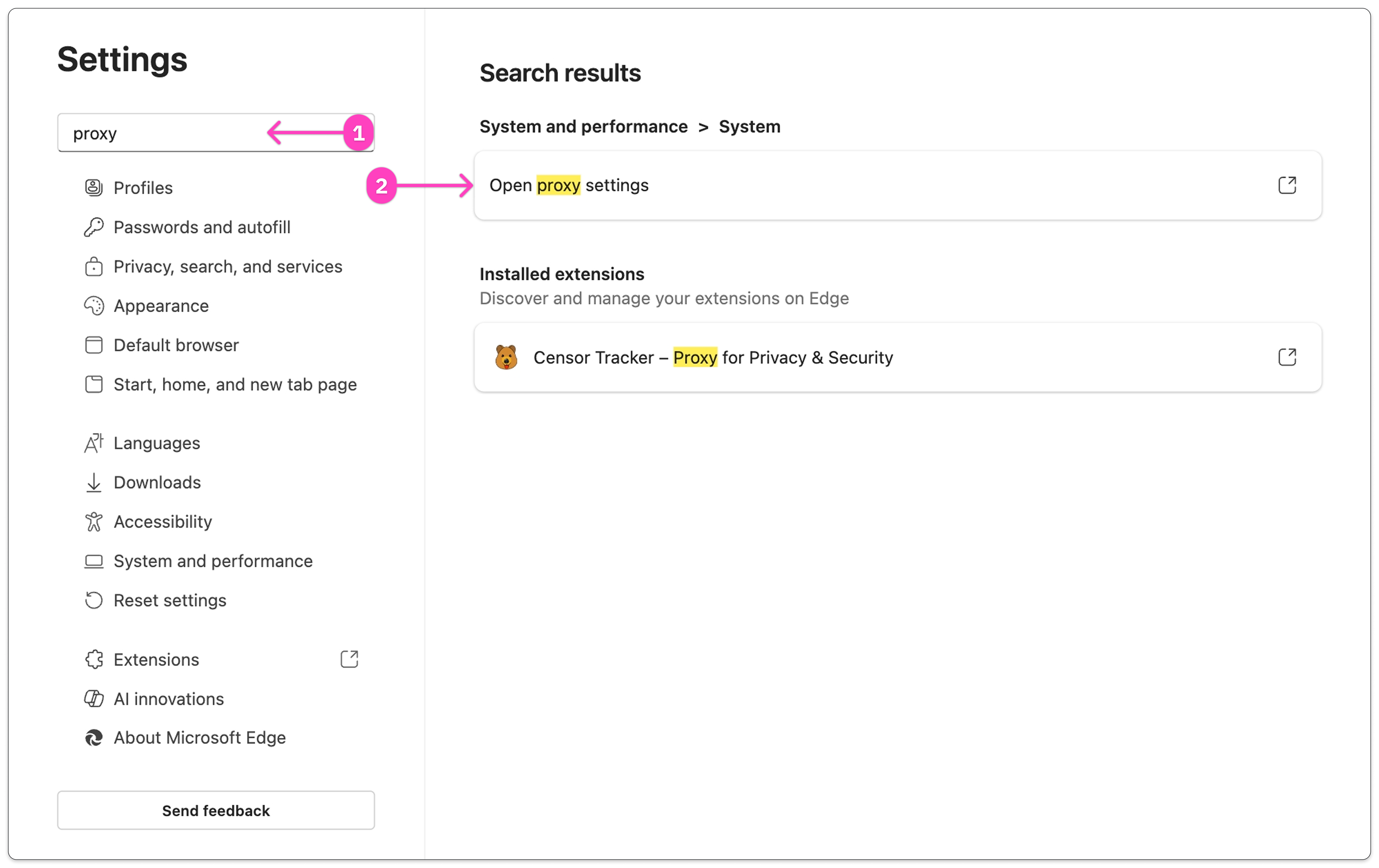
If you need to configure a proxy in Microsoft Edge browser, for example, you won't be able to do it through the app's internal settings — you'll need to configure and enable the proxy in system settings, which will automatically open when you click Open proxy settings.
If you set AmneziaVPN Local Proxy as the system proxy, traffic from various applications, not just the browser you need, will go through the proxy server.