Reload API Configuration
To connect to a VPN server, the AmneziaVPN app uses two configurations: a primary one and a main one. The primary configuration is encrypted in the connection parameters, while the main configuration is obtained by the app during connection.
Amnezia Premium
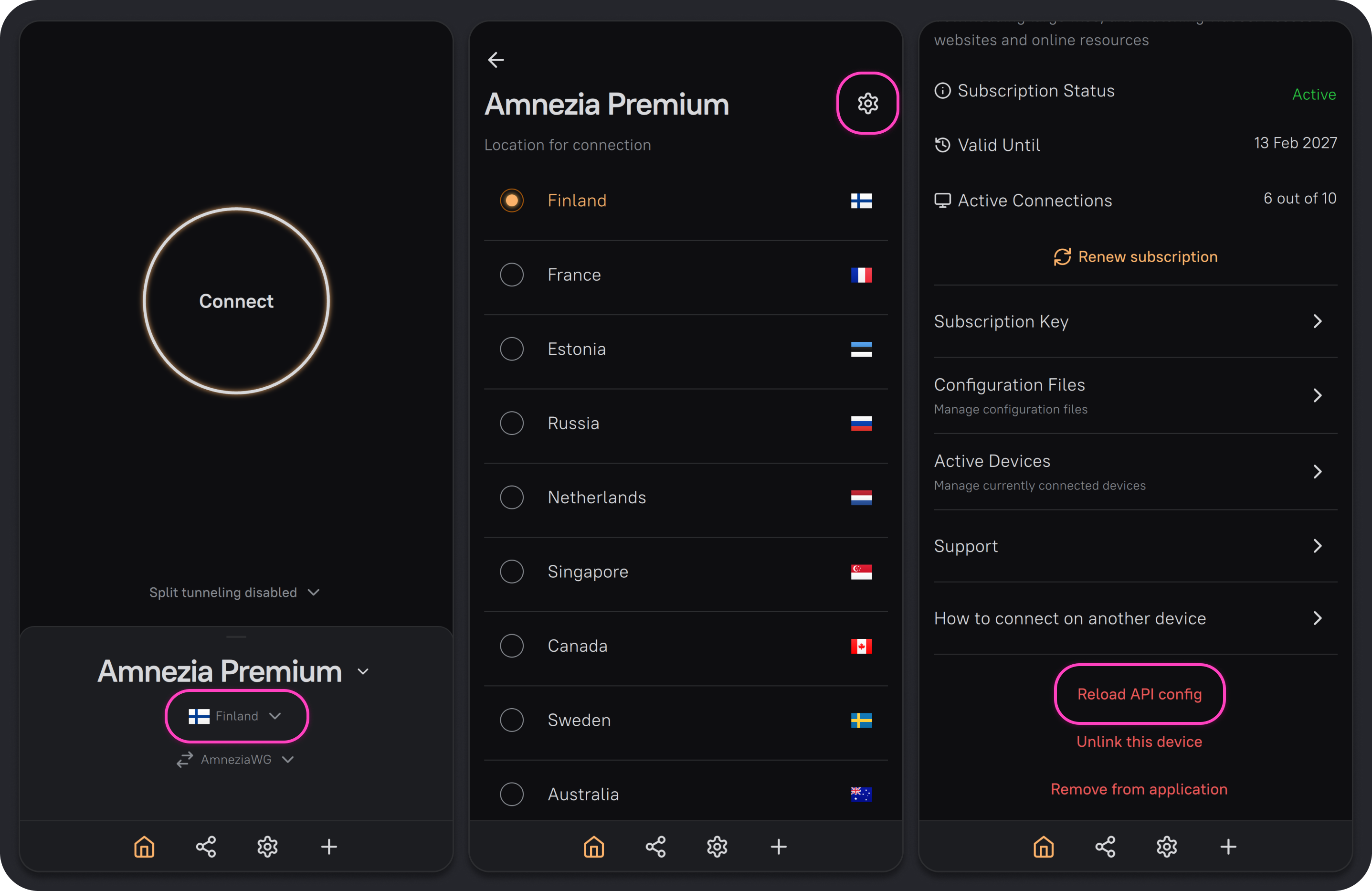
In AmneziaVPN
- Click the Amnezia Premium connection location.
- Click ⚙️ (gear icon) in the upper-right corner.
- In the settings section that opens, click Reload API config, then Continue.
In DefaultVPN
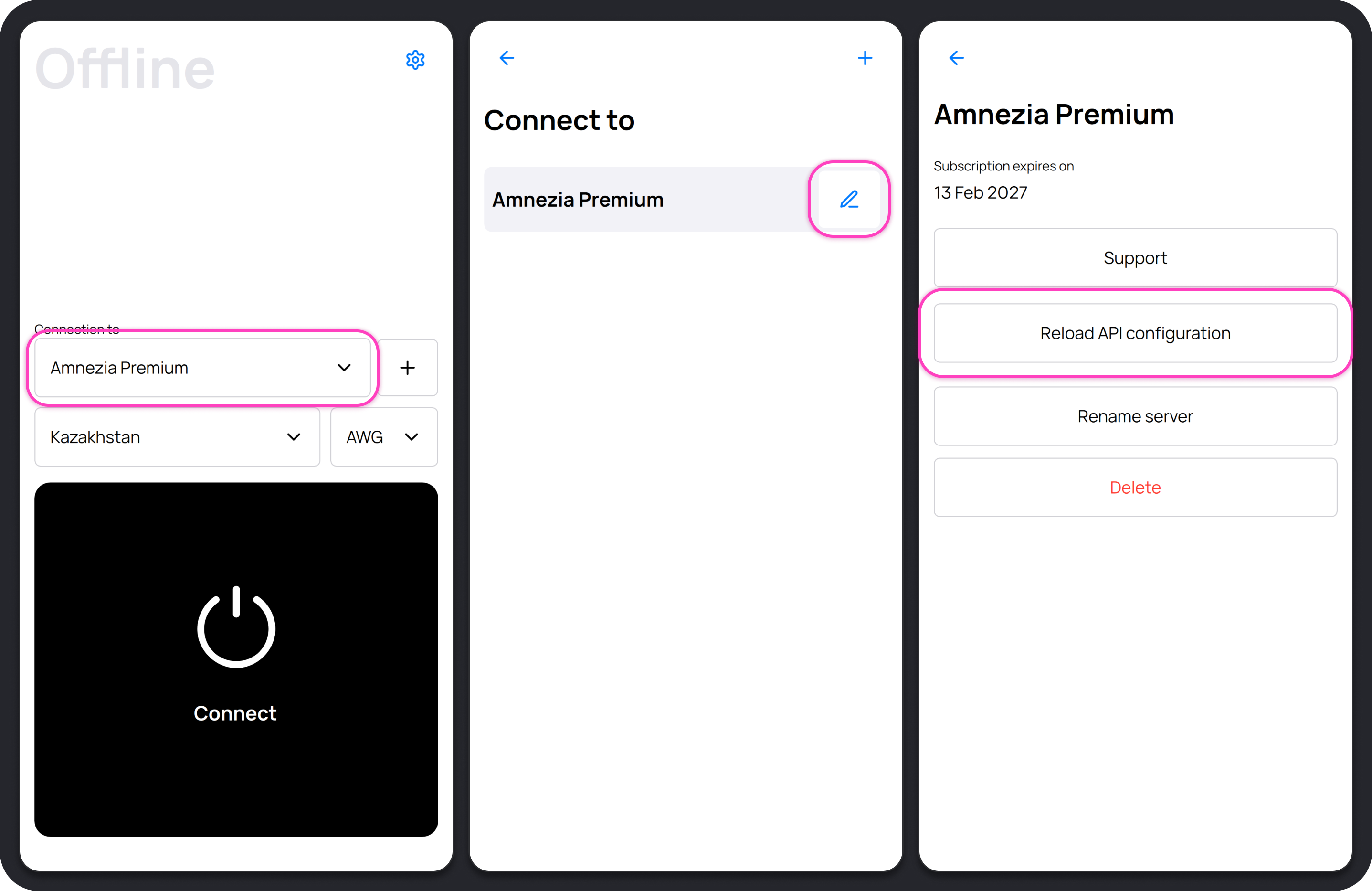
- Open the DefaultVPN app.
- Click any connection name.
- Click the 📝 (pencil icon) to the right of Amnezia Premium.
- Click Reload API config → Continue.
Alternative method in AmneziaVPN
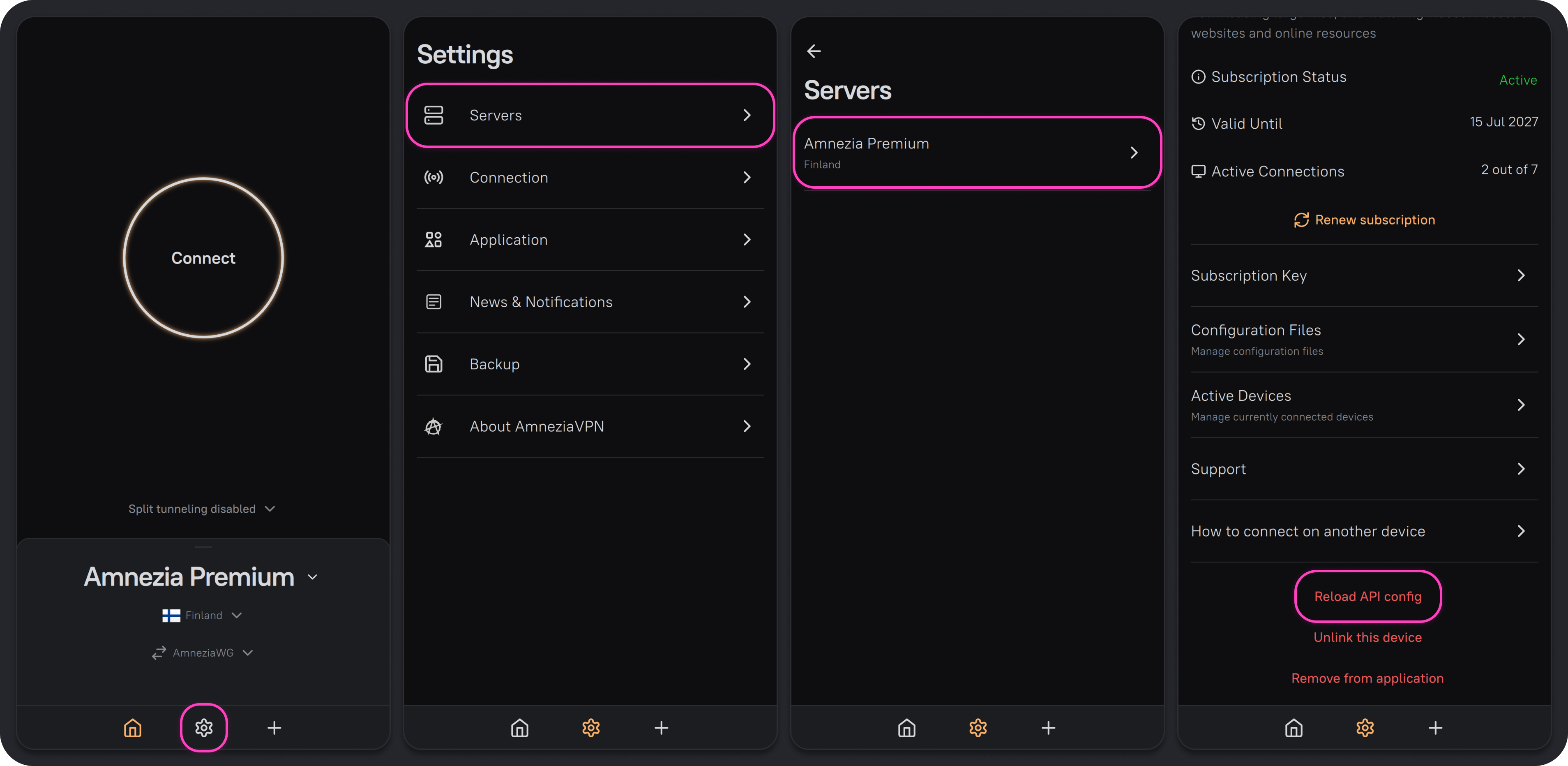
- Click ⚙️ (gear icon) in the bottom panel of the AmneziaVPN app.
- Go to the Servers section.
- Select the Amnezia Premium connection you're having trouble with.
- In the settings section that opens, click Reload API config, then Continue.
Amnezia Free
If the main configuration does not load correctly, the connection may fail. Reloading the API config makes the app load this configuration again, so this step can help with connection errors.
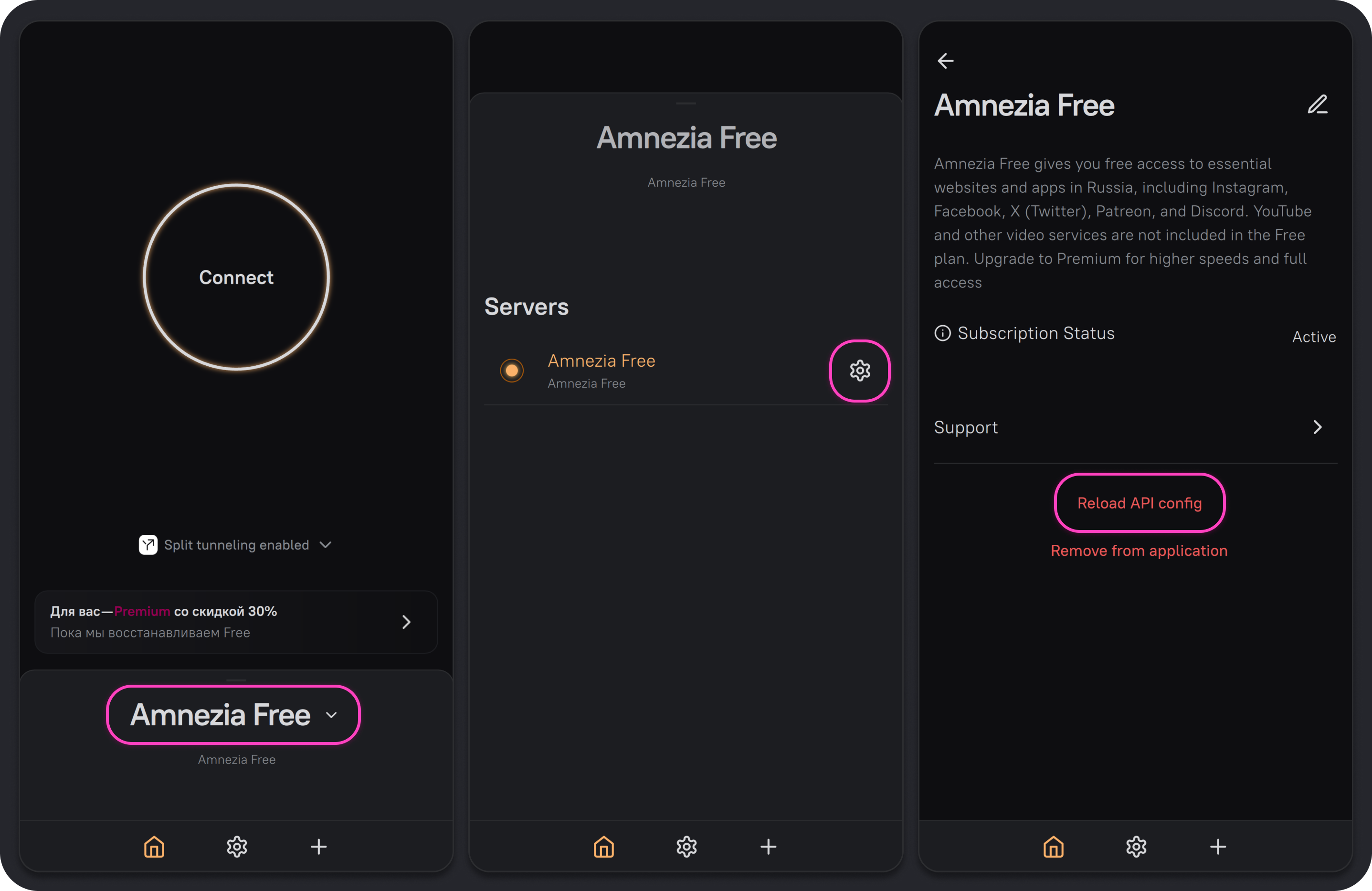
In AmneziaVPN
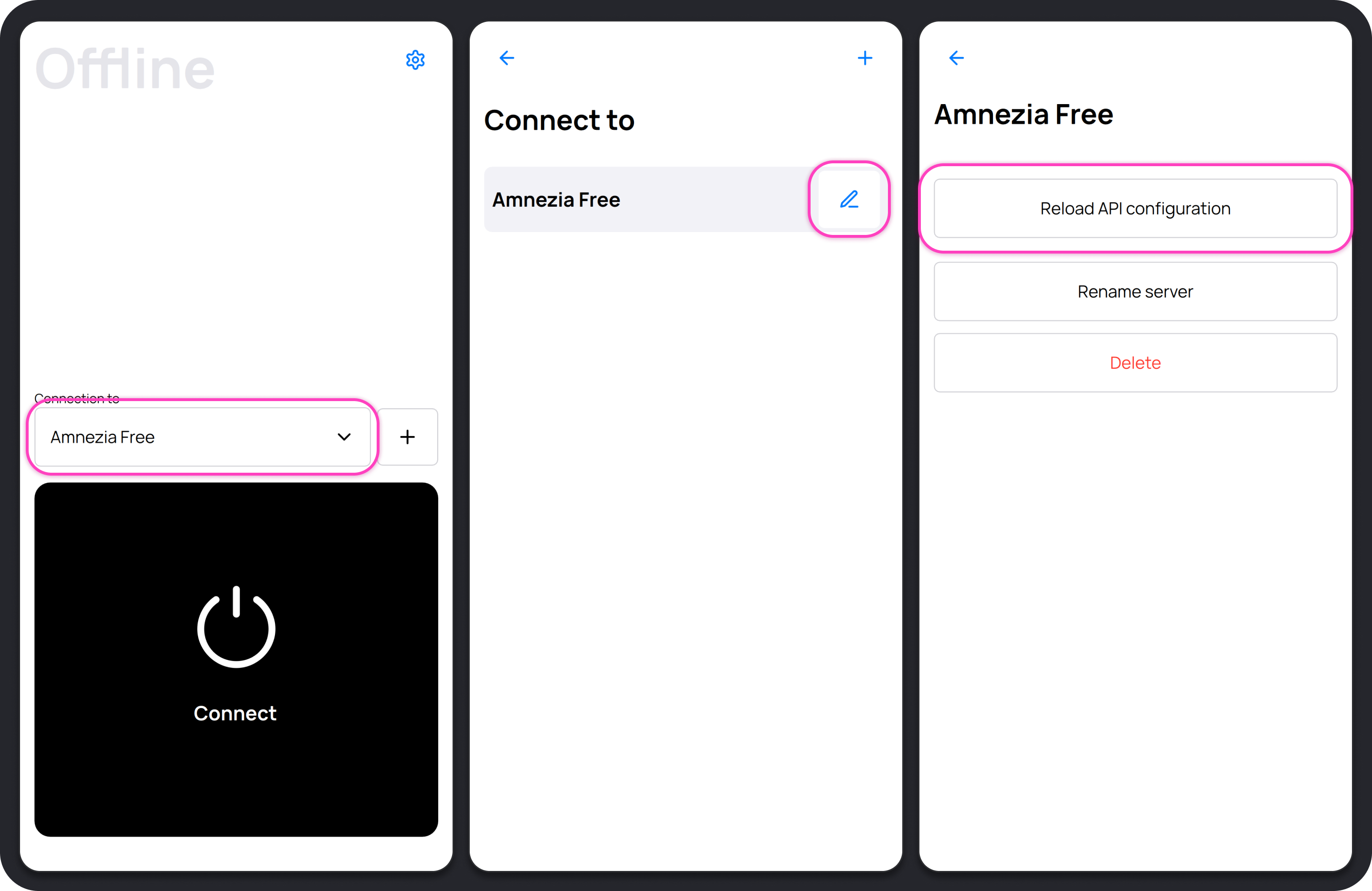
- Click the Amnezia Free connection.
- Click ⚙️ (gear icon) to the right of the Amnezia Free connection with the issue.
- In the settings section that opens, click Reload API config, then Continue.
In DefaultVPN
Use this section only if you connect to Amnezia Free through DefaultVPN as the Russia-specific alternative.
- Open the DefaultVPN app.
- Click any connection name.
- Click the 📝 (pencil icon) to the right of Amnezia Free.
- Click Reload API config → Continue.