Installing AmneziaVPN on Windows
Overview
This guide explains how to download the AmneziaVPN installer for Windows from GitHub and install the app.
Downloading the Installer
-
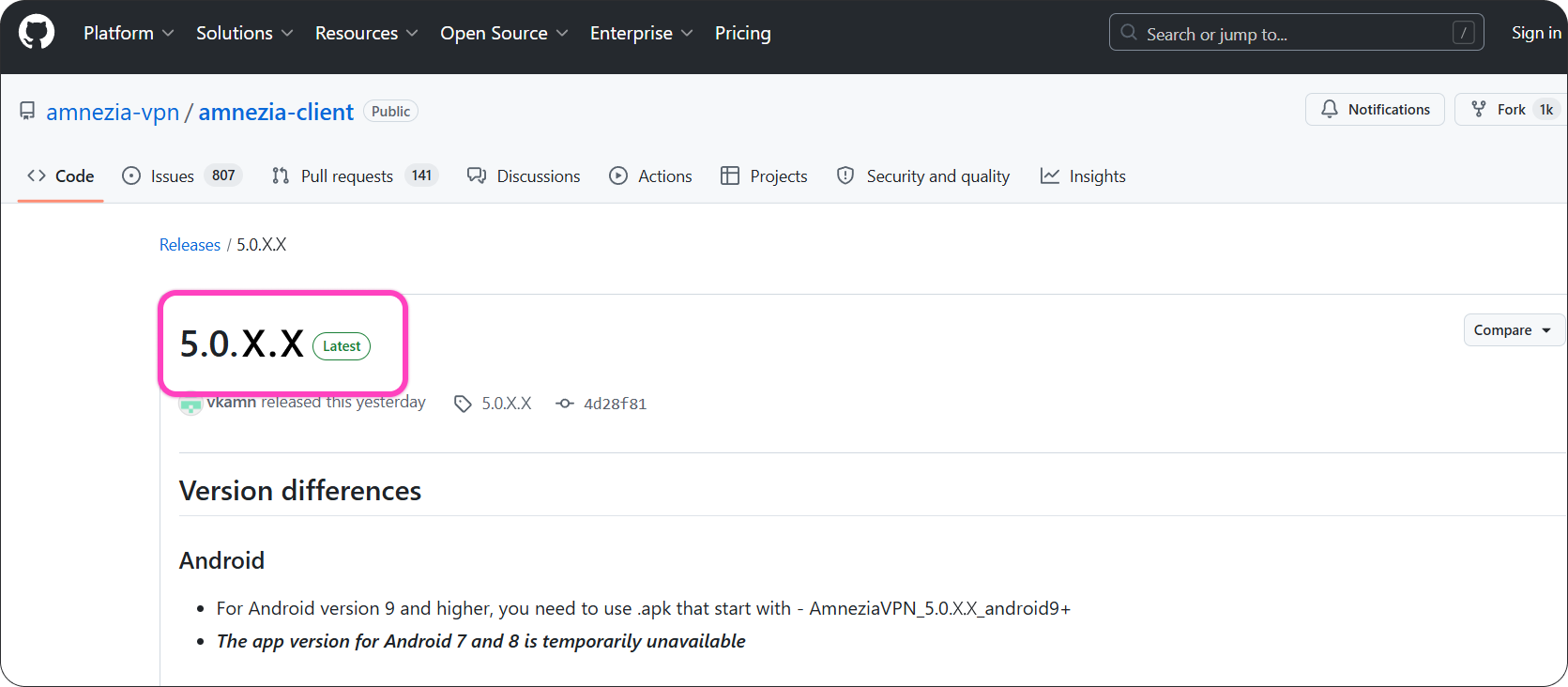
Open the latest stable AmneziaVPN release page on GitHub: github.com/amnezia-vpn/amnezia-client/releases/latest.
-
On the GitHub releases page, find the latest stable AmneziaVPN release. It has a green Latest label.
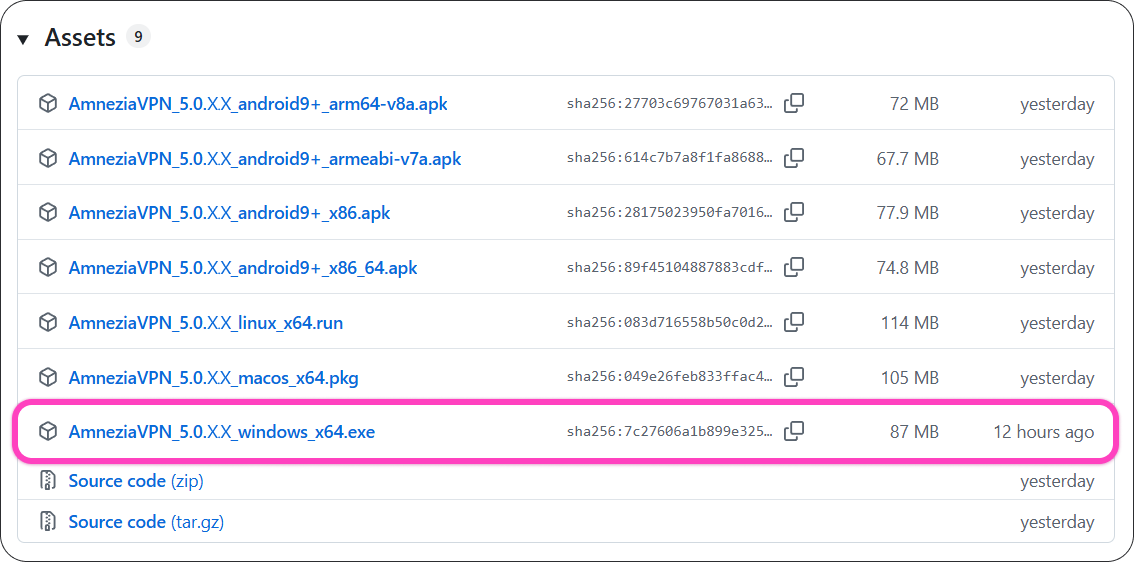
- In the Assets section, find the
.exefile and download it.
Installing the App
-
Run the downloaded
.exefile. It is usually in the Downloads folder. -
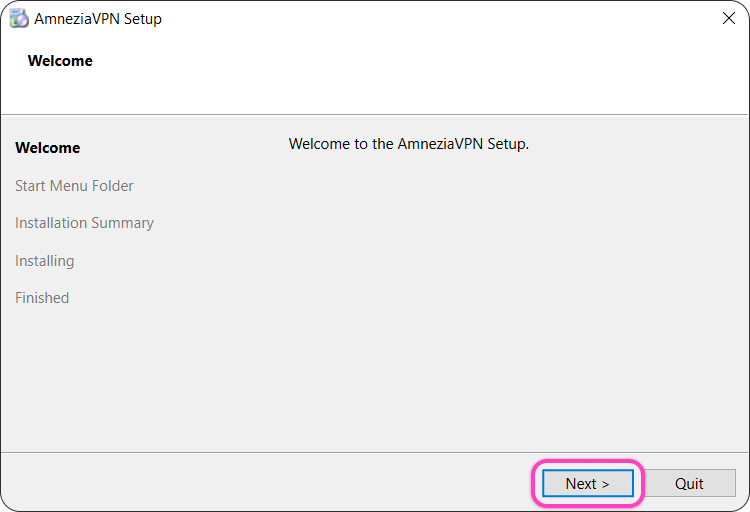
In the AmneziaVPN installer, click Next.
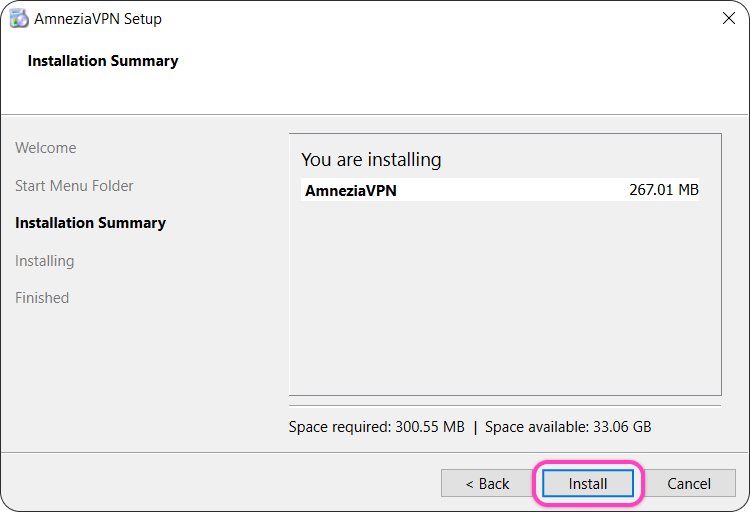
- Click Install.
For AmneziaVPN to work correctly, you cannot change the installation path.
Default path: C:\Program Files\AmneziaVPN.
- If Windows asks for permission to make changes to your device, click Yes.
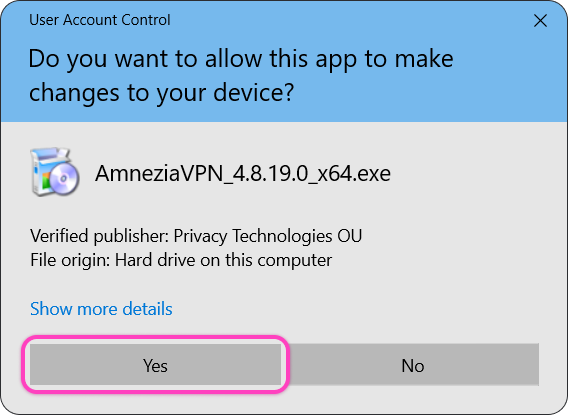
When the installation is complete, AmneziaVPN opens automatically. We recommend restarting your device after installation. Then you can connect.
Possible installation issues
If the installer shows an error that contains sc create AmneziaVPN-service, see this guide: sc create AmneziaVPN-service error on Windows.
If Windows shows an error that the system could not find MSVCP140.dll or MSVCP141.dll, see this guide: The System Could Not Find MSVCP140.dll or MSVCP141.dll.